How to Summarize a PDF With AI (and Check It's Accurate)
How to summarize a PDF with AI: choose the right summary type and length, focus it on what you need, check the facts, and know where your document goes.

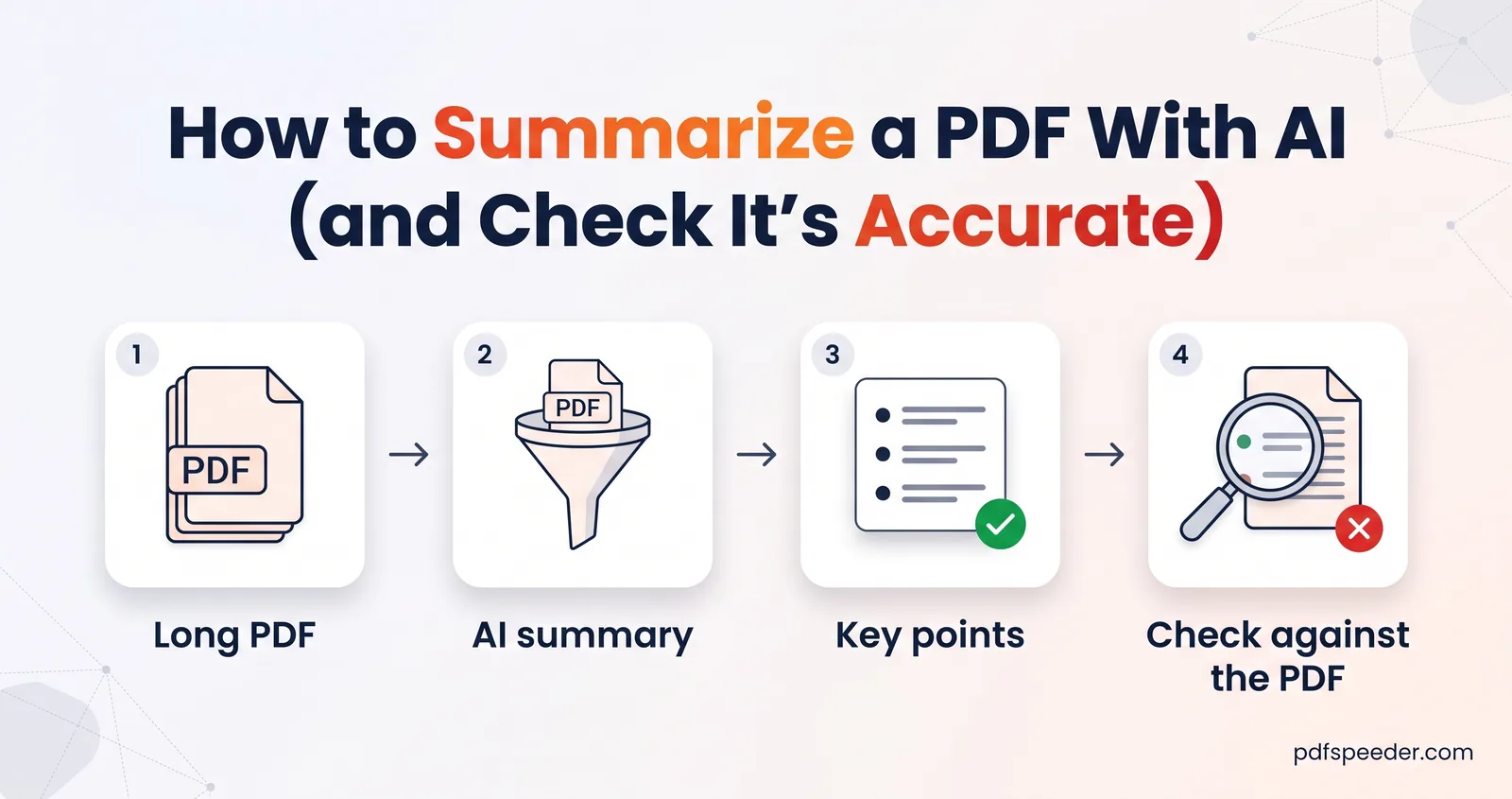
To summarize a PDF, upload it to an AI summarizer, choose the kind of summary you need (key points, an executive summary, a one-paragraph TL;DR and so on), then check every number and claim against the original before you rely on it. AI is very good at condensing clear, text-based documents. It is weaker with scans, tables and very long files, and knowing those limits is what makes a summary trustworthy.
On this page
What an AI summary can and can't do
A summarizer reads the text of your PDF and rewrites it shorter, in the structure you ask for. That makes it excellent at some jobs and unreliable at others:
| Works well | Needs care |
|---|---|
| Reports, articles, policies and notes with real text | Scanned pages, which must be read with OCR first |
| Turning 30 pages into bullet points or Q&A | Tables, whose rows and columns arrive as plain text |
| Explaining jargon in plain language | Charts, photos and handwriting, which carry no text |
| Writing the summary in another language | Very long files, which can pass the length limit |
| Pulling out what matters for a stated focus | Legal, medical or money decisions, where you must read the source |
The table's right-hand column is where mistakes come from. A summary can only be as good as the text the tool managed to read, so a messy scan or a dense table deserves a closer check.
Pick the right summary type
Our AI PDF Summarizer offers eight summary types, and each one is built around a different job:
| Summary type | What you get | Use it for |
|---|---|---|
| Key Points (default) | A one-line headline, 4 to 8 bullets and a short wrap-up | Quick reviews and meeting prep |
| Executive Summary | Overview, key findings and recommendations | Reports you're passing to a manager or client |
| TL;DR | One paragraph of up to about 120 words | Deciding whether to read the whole thing |
| Detailed | A section-by-section summary with a conclusion | Long reports and textbook chapters |
| Q&A | 5 to 10 question-and-answer pairs | Revision and quick reference |
| Outline | A nested bullet outline | Study notes and seeing the structure |
| Simplified | The big idea plus a few plain-language bullets | Jargon-heavy documents |
| Academic Abstract | One paragraph: context, aim, method, results, conclusion | An AI summary of a research paper |
If you're not sure, start with Key Points. It's the easiest to check against the document, because every bullet is a separate claim.
Summarize a PDF step by step
- Open AI PDF Summarizer and add your PDF (up to 30 MB). If the file asks for a password, remove it first; our guide to removing a password from a PDF shows how.
- Choose a Summary Type from the cards.
- Choose a Length: Short (about 150 words), Medium (about 350) or Long (about 700). TL;DR and Academic Abstract stay short whatever you pick.
- Choose a Tone: Professional (the default), Formal, Casual or Simple.
- Open More options to add a Focus and pick an Output language.
- Select Summarize with AI. When the summary appears, use Copy or Download .txt.
Each summary counts as one task in the free daily allowance: 2 tasks a day without an account, 3 with a free account, reset at 00:00 UTC (05:30 IST). Trying a second summary type on the same file is another task, so choose carefully.
Get better results: focus, length and language
Tell it what you care about
The Focus box takes up to 300 characters and steers the whole summary while keeping it faithful to the document. Write it the way you'd brief a colleague:
- A loan agreement: "interest rate, prepayment charges and penalties"
- A research paper: "methods, sample size and limitations"
- A company policy: "what changes for employees and from which date"
- A textbook chapter: "definitions and formulas I need for the exam"
Match the length to the reader
Short, about 150 words, fits in a chat message. Long, about 700 words, is roughly a page and a half of single-spaced text. For a document you'll discuss in detail, Long with the Detailed type gives every section a few sentences of its own.
Summarize a PDF in Hindi or another language
Pick an Output language: Same as document, English, Hindi, Spanish, French, German, Portuguese, Arabic, Chinese, Japanese, Russian, Bengali, Tamil or Marathi. The PDF can be in one language and the summary in another, so you can summarize a PDF in Hindi even when the report itself is in English. Names, brand names, code and acronyms are kept in their original form.
How to summarize a long PDF
The summarizer reads up to 120,000 characters of text. English averages about 6 to 6.5 characters per word, spaces included, so that's roughly 18,000 to 20,000 words, or about the first 25 to 30 dense, single-spaced pages; anything after that isn't included, and the summary won't tell you so. To summarize a long PDF, such as a 200-page annual report, split it into parts of about 25 pages and summarize each one, or summarize only the chapters you need. Each part counts as a separate task.
Scanned PDFs
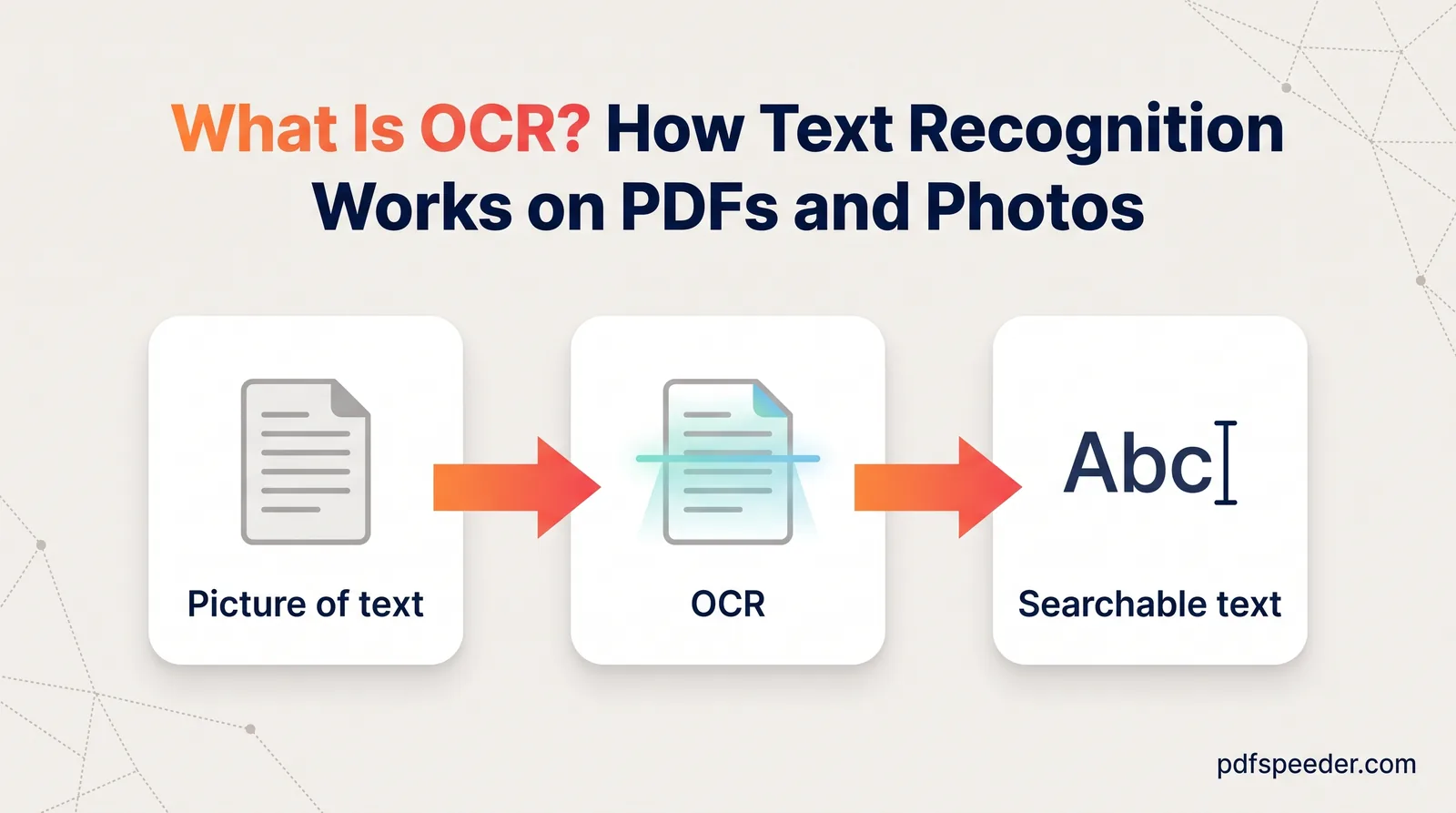
When a page has no text layer, the summarizer reads it with OCR, which recognises English. For a scan in Hindi, Tamil or another language, first run it through PDF to OCR with the right language selected. It works in your browser and gives you a searchable PDF, which you can then summarize. Our explainer on what OCR is covers why scan quality matters so much.
Check the summary before you rely on it
The summarizer is instructed to stick to the document and to say when information is missing rather than invent it. Even so, read the summary as a draft. Five checks catch most problems:
- Numbers. Search the PDF (Ctrl+F) for every amount, percentage and date in the summary, and confirm it's the right one.
- Conditions. Look for words like "not", "unless", "only if" and "up to" in the original. Summaries tend to drop qualifiers.
- Attribution. In research papers, make sure a finding belongs to this study, not to earlier work the paper cites.
- Coverage. Compare the summary's topics with the PDF's contents page. If the later chapters are missing, the file probably passed the length limit.
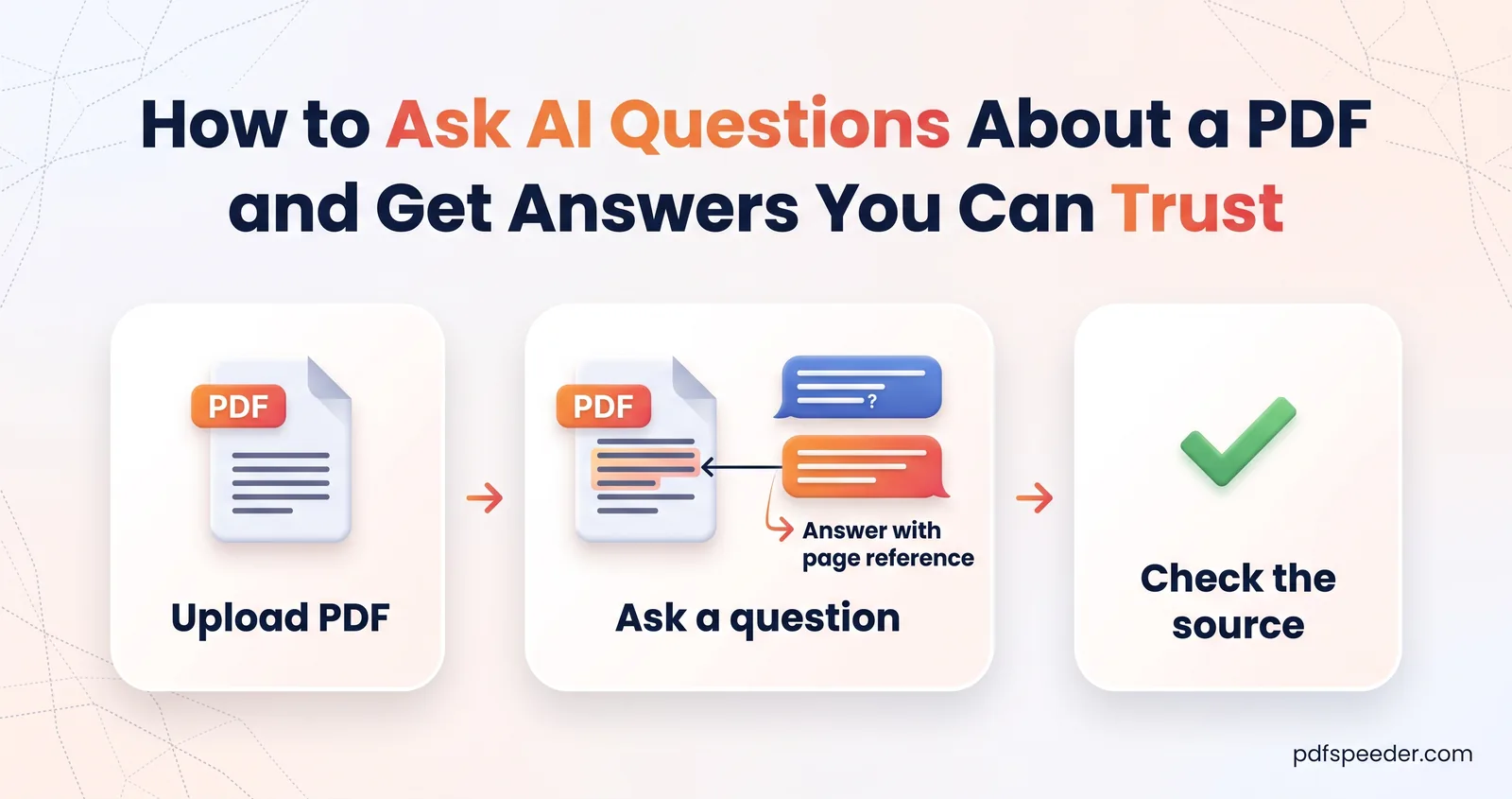
- Surprises. If something seems off, ask Chat with PDF where the document says it. It cites page numbers when it can, and uploading the file counts as one task however many questions you ask in that session.
Privacy: what happens to your document
The summarizer is a server tool. Your PDF is uploaded over an encrypted connection, its text is extracted, and the uploaded file is deleted as soon as that's done; nothing is kept for more than 2 hours. The extracted text is sent to OpenAI to write the summary. Under OpenAI's API data policy, data sent through its API isn't used to train its models unless the customer opts in, and abuse-monitoring logs are kept for up to 30 days.
That's fine for most reports, papers and notes. For confidential client files, medical records or anything your employer restricts, check the rules before you upload.
Try it on the next long PDF you need to get through: pick Key Points, add a one-line focus, and spend two minutes checking the numbers.
Frequently asked questions
Can I summarize a PDF for free?
Yes. AI PDF Summarizer is free within the daily allowance, and each summary counts as one task.
How do I summarize a long PDF?
Split it into parts of about 25 pages and summarize each part, because the summarizer reads only the first 120,000 characters of text, about 25 to 30 dense pages.
Can AI summarize a scanned PDF?
Yes, as long as the text can be recognised. The summarizer reads scanned pages with English OCR, so convert scans in other languages with PDF to OCR first.
How accurate is an AI summary of a PDF?
Usually good on clear, text-based documents, but it can misread numbers and drop conditions. Check every figure against the source before you rely on it.
Can I get the summary in a different language from the PDF?
Yes. Choose an output language under More options, such as Hindi, Tamil or English, and the whole summary is written in it.