How to Generate Quiz Questions From a PDF for Study or Teaching
Generate questions from a PDF with AI: why self-testing works, how many questions and which types to ask for, and how to turn them into flashcards or a quiz.

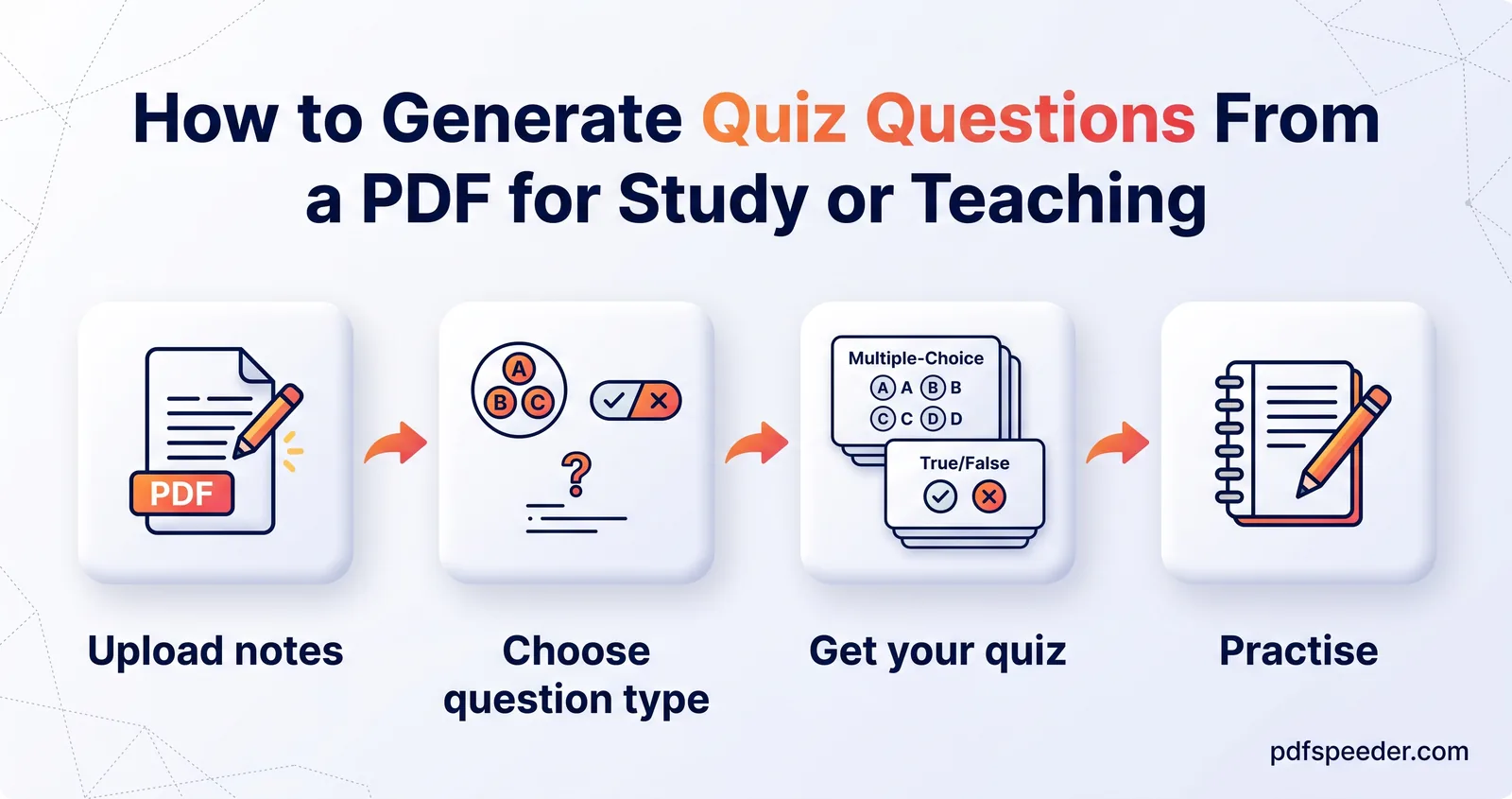
To generate questions from a PDF, upload it to an AI question generator, choose how many questions you want, and check each answer against the source before you study with them or hand them out. Our AI Question Generator turns a chapter, handout or set of notes into 5 to 30 questions with an answer key in a minute or so. The questions are only half the value, though: answering them from memory, before you look, is what makes the material stick.
On this page
Why practice questions beat re-reading
In 2013, a team of psychologists led by John Dunlosky reviewed the research on ten popular study techniques in the journal Psychological Science in the Public Interest. Two came out on top with a high utility rating: practice testing and distributed practice, meaning quizzing yourself and spreading study over several sessions. Rereading, highlighting and summarising, some of the most common habits, were rated low utility, as the Association for Psychological Science's summary of the review explains.
That's the active recall study method in practice: pulling an answer out of memory, rather than recognising it on the page, is the work that strengthens it. Three habits make generated questions far more useful:
- Answer before you check. Cover the answer key, write or say your answer, then compare.
- Space the rounds. Run through the same questions again a day later and a week later, rather than three times in one evening.
- Mark what you missed. Re-read only the parts of the PDF behind the questions you got wrong.
If you take things in better by ear, you can also have the PDF read aloud or turned into an MP3 between quiz rounds.
Generate questions from a PDF step by step
- Open our AI Question Generator and add your PDF, up to 30 MB. If it's password-protected, remove the password first.
- Choose the Number of Questions: 5, 10 (the default), 15, 20 or 30.
- Select Generate Questions. The text is extracted from your PDF, scanned pages are read with English OCR, and the AI writes the quiz.
- Read the result: a Questions section followed by an Answer Key, numbered to match.
- Select Copy, or Download .txt to save it as a text file named after your PDF.
Each quiz counts as one task in the free daily allowance: 2 tasks a day without an account, 3 with a free account, reset at 00:00 UTC (05:30 IST). Generating again from the same file is a new task, and with the same settings it can produce an overlapping set of questions, so choose the number carefully the first time.
Note: The generator reads up to 120,000 characters of text, roughly 20,000 words or 30 to 40 single-spaced pages. Text beyond that isn't seen, so questions from a long book come only from its opening. Split long files by chapter and generate a quiz for each part.
For a scan in Hindi, Tamil or another language, make it searchable first with PDF to OCR, choosing the right language, then upload the searchable PDF it creates.
How many questions and which kinds?
There's no perfect number, but the size of the material is a good guide:
| Material | Questions to ask for | How to use them |
|---|---|---|
| One lecture handout or 5 to 10 pages of notes | 5 or 10 | A quick check straight after class |
| A textbook chapter of 15 to 30 pages | 15 or 20 | Chapter revision, repeated a few days later |
| A full unit, split into parts of up to about 35 pages | 30 per part | A mock test before the exam |
| A short policy or training document | 5 to 10 | A comprehension check for a team |
Every quiz mixes three kinds of question. The generator is instructed to aim for roughly half multiple choice, 30% short answer and 20% conceptual, and the exact mix varies from document to document:
- Multiple choice has four options, A to D, and the answer key gives the letter and the full option. It's the fastest way to make MCQ from a PDF for objective-style exams, and it works best for definitions, facts, dates and formulas.
- Short answer asks you to produce the answer with no options to lean on, which is harder and a better test of whether you really remember it.
- Conceptual questions ask why or how something works, checking understanding rather than memory.
The mix can't be changed in the tool. If you want only MCQs, generate a larger quiz and keep the multiple-choice items. To create test questions from notes rather than a book, export your notes to PDF first; clear headings and full sentences give the AI more to work with than fragments and arrows.
Turn the output into a quiz or flashcards
A printable quiz or worksheet
The quiz arrives as simple Markdown, with headings and numbered lists, which Text to PDF can lay out neatly:
- Copy the quiz, open Text to PDF, choose Paste text, paste it and select Add to queue.
- Set Content type to Markdown (formatted), pick a 12 or 14 pt font and A4 or US Letter, and tick Add page numbers.
- For a student copy, delete the Answer Key section before converting, then convert the key separately as the teacher's copy.
Text to PDF renders on our server and counts as one task in the daily allowance. If you'd rather save the task, paste the quiz into Word or Google Docs and print from there.
Flashcards in Anki or Quizlet
Both apps can import a list with one card per line and the answer separated from the question:
- Anki imports plain text files whose fields are separated by tabs, commas or semicolons, one note per line, as its manual on importing text files describes.
- Quizlet has an Import box when you create a flashcard set on its website: separate each term from its definition with a tab, comma or dash, and each card with a new line, according to Quizlet's help on creating sets.
The quickest way to build that list is a spreadsheet: questions in column A, answers in column B. Copying both columns gives you tab-separated lines, ready to paste. For multiple-choice items, keep the four options on the front of the card and put the letter and answer on the back.
For teachers: review and adapt before sharing
An AI question generator from PDF material saves the drafting, not the checking. Before a quiz reaches students, run through this list:
- Check every answer. Search the PDF for the key term (Ctrl+F) and confirm the answer key matches what the text actually says.
- One right answer per MCQ. Make sure exactly one option is correct and the others are plausible but clearly wrong.
- Stay within the material. Remove questions that need knowledge from outside the chapter, unless that's deliberate.
- Match your class. Reword questions for your students' level, add marks, and drop anything too easy or too obscure.
- Check coverage. Compare the questions with the chapter's headings; if later sections are missing, the PDF may have passed the length limit.
- Make versions. Shuffle the question order or the MCQ options to create a second paper.
Mind what you upload, too. The PDF travels over an encrypted connection and is deleted from our server as soon as its text has been extracted, but that text is sent to OpenAI to write the questions. Textbook chapters and your own notes are fine; student records or confidential papers aren't. For a summary instead of a quiz, our guide on how to summarize a PDF compares the AI PDF Summarizer's summary types, and to dig into one passage, see how to ask AI questions about a PDF.
Next step: pick one chapter you need to learn this week, generate 10 questions, answer them without looking, and repeat the same quiz in two days.
Frequently asked questions
Can AI make MCQs from a PDF?
Yes. About half of each quiz is multiple choice, with four options from A to D, and the answer key gives the correct letter and option text.
How many questions can I generate from one PDF?
Between 5 and 30 per run. For a longer question bank, split the PDF into parts and generate a quiz for each, remembering that every run counts as a task.
Are AI-generated quiz questions accurate?
They're drawn from your PDF's text, but answers can still be wrong or ambiguous. Check each answer against the source, especially numbers, formulas and definitions.
Can I generate questions from a scanned PDF?
Yes, if the scan is in English, because pages without text are read with English OCR. For other languages, make the scan searchable with PDF to OCR first.
Is the AI Question Generator free?
Yes, within the free daily allowance, with each quiz counting as one task.