How to Have a PDF Read Aloud (or Turn It Into an MP3)
Have a PDF read aloud on any device with Edge, Acrobat, iPhone or Android, or turn it into an MP3 audiobook with natural AI voices, right in your browser.

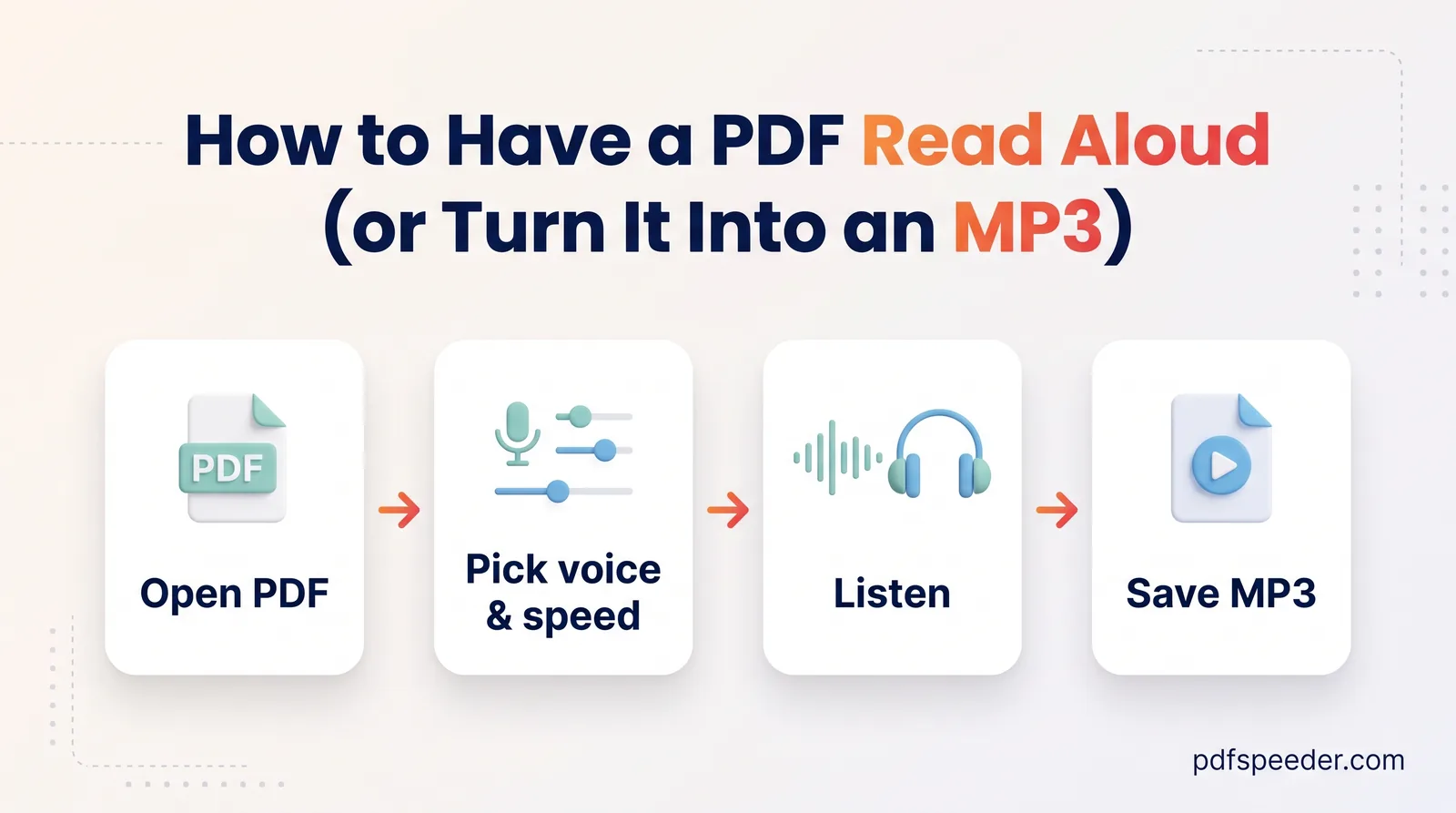
To have a PDF read aloud, open it in an app with a built-in reader, such as Microsoft Edge or Adobe Acrobat Reader on a computer, or turn on Speak Screen on an iPhone or Select to Speak on Android. Those voices read while the document stays open on your screen. If you'd rather listen later, offline or on a commute, turn the PDF into an MP3 audiobook instead, which our PDF to Audio tool does in your browser with natural-sounding AI voices.
On this page
Read a PDF aloud with built-in tools: Edge, Acrobat, iPhone and Android
Every major platform can already read a PDF aloud for free. Here's where to find each option:
| Where you are | How to start reading | Worth knowing |
|---|---|---|
| Microsoft Edge on Windows or Mac | Open the PDF in Edge and choose Read aloud in the PDF toolbar | Highlights the text as it reads |
| Adobe Acrobat Reader on a computer | View > Read Out Loud > Activate Read Out Loud (Shift+Ctrl+Y), then Read This Page Only or Read To End Of Document | Voice and speed are set in Preferences |
| iPhone or iPad | Turn on Speak Screen, open the PDF and swipe down with two fingers from the top of the screen | A floating controller lets you pause and change speed |
| Android | Turn on Select to Speak, open the PDF, use its shortcut and tap Play | Can also read just the text you select |
To read a PDF aloud on iPhone, go to Settings > Accessibility > Read & Speak (called Spoken Content before iOS 26) and turn on Speak Screen, as Apple's guide to having iPhone speak the screen explains. On Android, open Settings > Accessibility > Select to Speak and turn on the Select to Speak shortcut; Google's Select to Speak help shows the shortcut gestures. Edge's version is described in Microsoft's notes on the PDF reader in Microsoft Edge.
These readers are quick, but they read everything on the page, including running headers, page numbers and footnote markers, and they only work while the document is open in front of you. That's fine for a short letter and tiring for a 40-page report, which is where a cleaned-up audio file helps.
Turn a PDF into an MP3 you can keep
Our PDF to Audio tool makes a PDF audiobook entirely in your browser: the PDF is never uploaded. Making an audio file counts as one task in the free daily allowance (2 a day without an account, 3 with a free account); listening in the page doesn't.
- Add the PDF, up to 100 MB. A banner tells you whether it's a digital PDF, a scan or a mix of both.
- Choose the pages. All are selected at first; click thumbnails, or use All, None and Invert, to narrow it down.
- Pick a voice. There are 28 AI voices, in American and British English, female and male. Use Preview voice to compare a few.
- Set the speed and format. Narration speed runs from 0.6× to 1.4×. Choose MP3 at 64, 96 (recommended) or 128 kbps, or WAV.
- Keep Smart text cleanup on and select Extract Text. You'll see the full narration text, a word count and an estimated listening time.
- Fix anything that reads badly, then select Generate MP3 (or WAV) and download the file.
The first time, the AI voice model, about 92 MB, downloads once and is cached by your browser, so do that on Wi-Fi. After that, generation runs at roughly real-time speed on a normal computer, and the progress bar shows how fast it's going. In other words, an hour of audio takes about an hour to make, so start long documents when you can leave the tab open. Recent phones can generate MP3s too, just more slowly.
The listening estimate assumes about 165 words a minute at 1.0×. A 20-page single-spaced report of around 14,000 words comes to roughly 85 minutes, or about an hour at 1.4×. Here's how big the resulting files are:
| Format | Size per hour of audio | Best for |
|---|---|---|
| MP3, 64 kbps | about 27 MB | Long documents on a phone with little space |
| MP3, 96 kbps | about 41 MB | Most listening (recommended) |
| MP3, 128 kbps | about 55 MB | The cleanest MP3 |
| WAV (24 kHz) | about 165 MB | Editing the audio afterwards |
One limit to know: the MP3 voices are English only. For other languages, use the tool's instant Listen mode, covered below.
Clean up the text so it sounds natural
Text to speech on a PDF goes wrong in predictable ways, and the three cleanup switches in PDF to Audio, all on by default, handle the worst of them:
- Skip headers, footers & page numbers drops the lines that repeat at the top and bottom of every page, so you don't hear the report's title 40 times.
- Fix hyphenated line-breaks rejoins words split across lines, such as "docu- ment", which otherwise sound like two half-words.
- Skip URLs, emails & [1] citations removes web addresses and reference markers that are unbearable read aloud.
Two more options under Advanced options shape the rhythm: Natural pauses between paragraphs and Read headings aloud, both on by default. The review step is where you do the rest by hand: delete the contents page, the reference list and any table that becomes a jumble of numbers, and check how abbreviations and figures sound with Listen before generating the whole file.
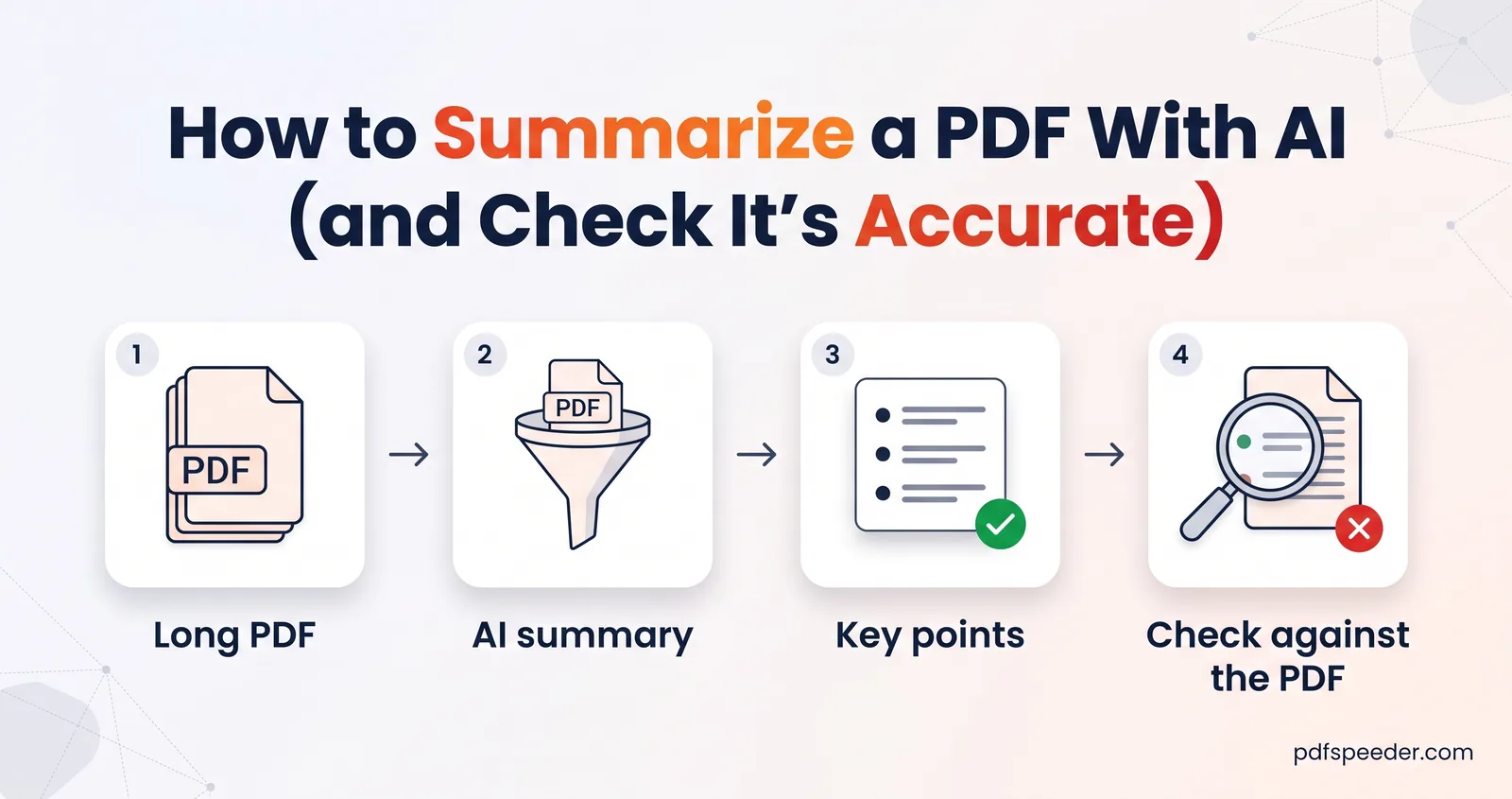
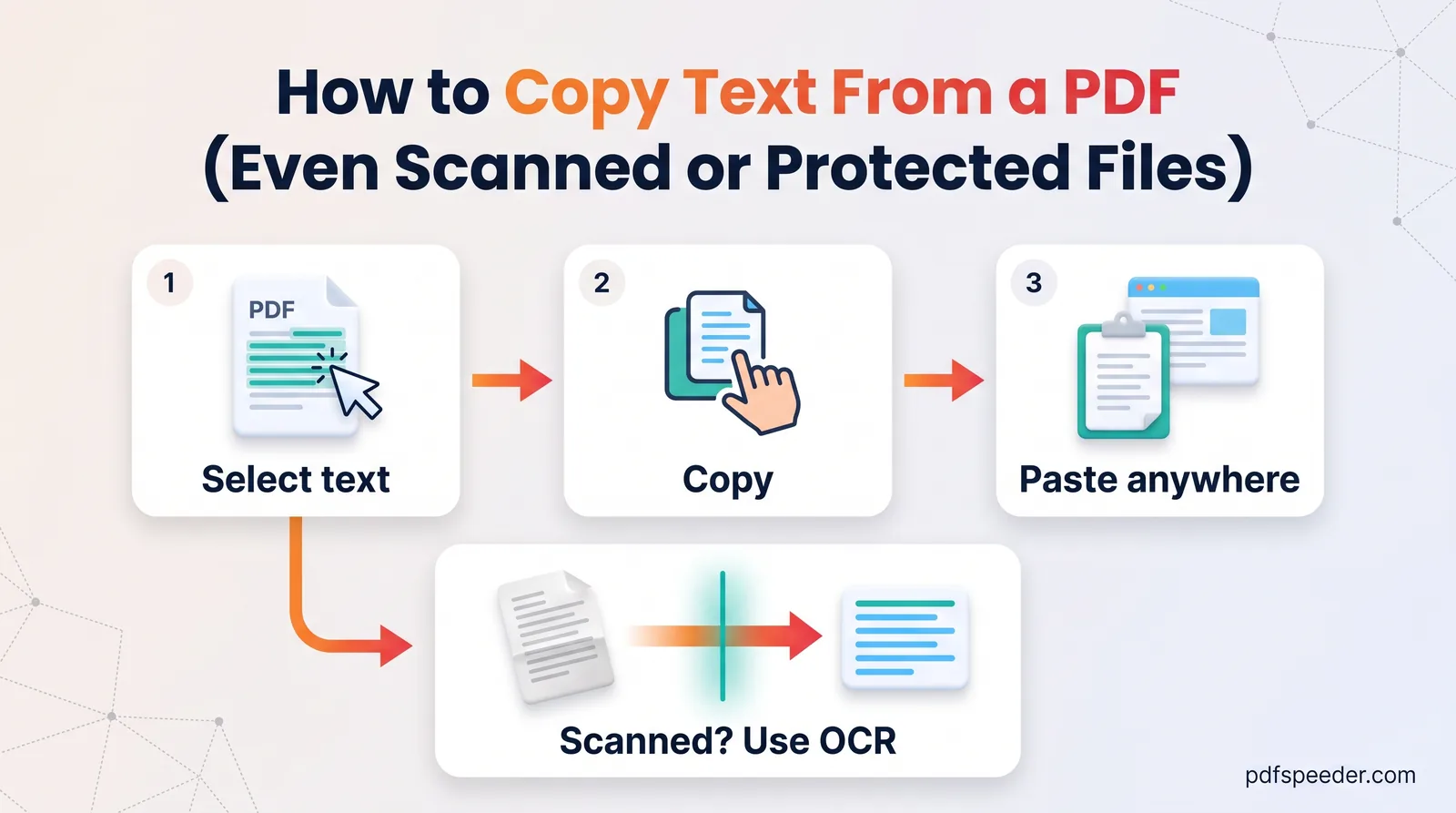
If you only want the words, to paste into another app or a phone's own reader, PDF to Text extracts them in your browser, with a Reading mode that reflows the text and options to drop running headers and page numbers. It counts as one task in the same daily allowance. Our guide to copying text from a PDF covers quicker ways for a paragraph or two.
Scanned PDFs: make the text readable first
A scanned page is a photo of text, so no reader can speak it until OCR has turned it into real characters. PDF to Audio does this automatically: with Scanned pages (OCR) on Auto, it reads scans in your browser in any of 13 languages, including Hindi, Arabic, Chinese and Japanese, and keeps only the words it's reasonably confident about.
For other scripts, such as Tamil, Bengali, Telugu or Marathi, run the file through PDF to OCR first. It supports 40 languages, also works in your browser, and produces a searchable PDF you can then narrate. Either way, check the review text for misread words before you generate, because OCR errors are much more noticeable when you hear them.
For a Hindi or other non-English document, generate the text, then use Listen with a voice installed on your device. Listen mode plays immediately with your phone's or computer's own voices in any language they have, highlights the current sentence, lets you click any sentence to jump there, and runs from 0.5× to 2× speed. It doesn't create a file, though; for a saved MP3, the narration has to be in English.
Get the most out of listening
- Split long documents. One MP3 per chapter is easier to find your place in than a single five-hour file.
- Speed up familiar material. 1.2× to 1.4× works for reports you skim; slow down for dense technical text.
- Listen, then test yourself. For study, pause after each section and recall the main points, or turn the same PDF into practice questions with our guide to generating questions from a PDF.
- Shorten it first. If you only need the gist of a long report, a summary takes minutes to hear instead of hours.
- Save it where you listen. Copy the MP3 to your phone's music or files app, and it plays offline on the train or in the car.
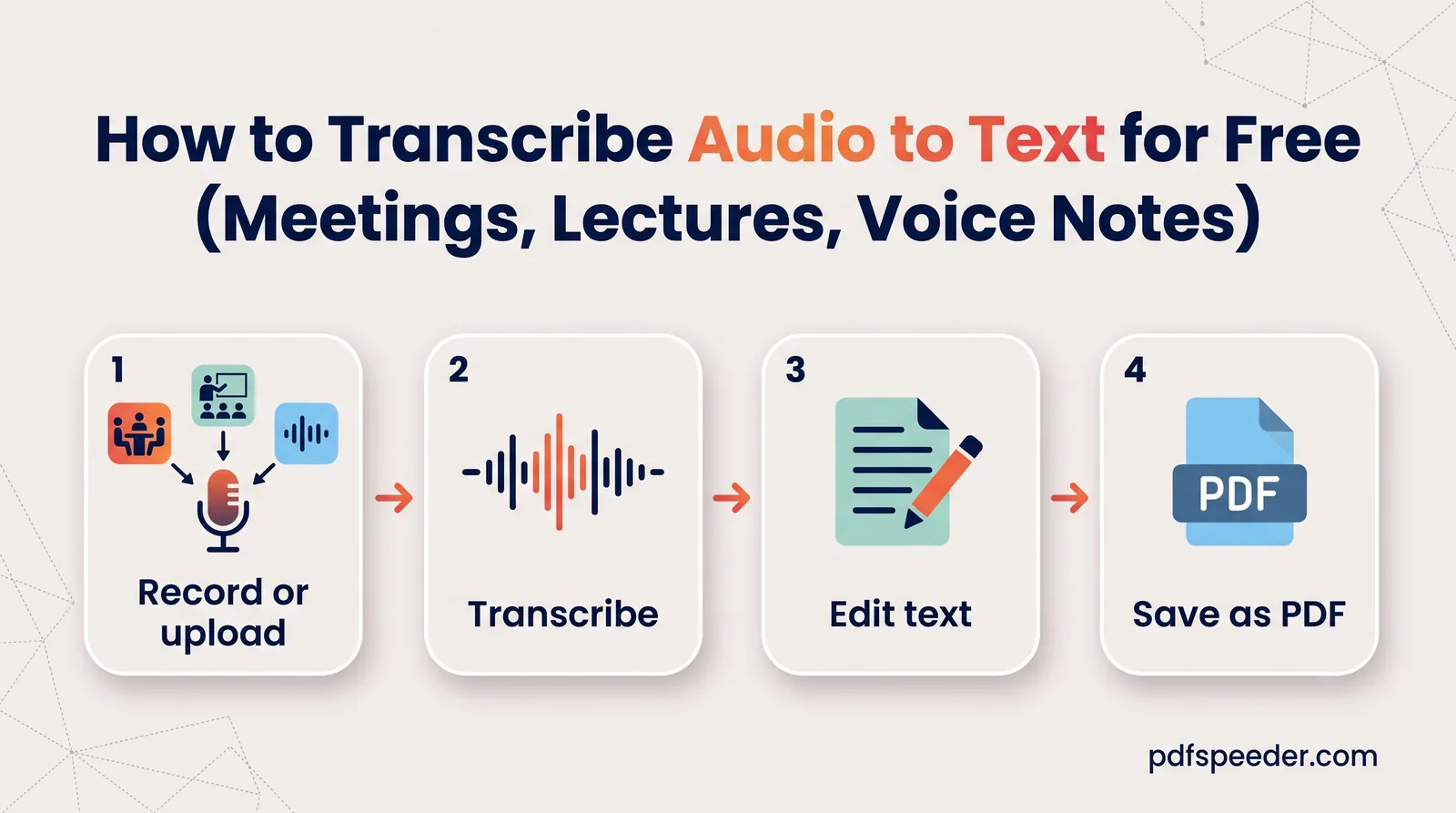
Need the opposite, a recording turned into text? Our guide to transcribing audio to text covers lectures, meetings and voice notes.
Next step: open PDF to Audio, select the pages you want, keep the cleanup switches on, and preview two or three voices before you generate your first MP3.
Frequently asked questions
How can I listen to a PDF on my phone?
Use Speak Screen on an iPhone or Select to Speak on Android to have it read on screen. For a file you can keep, PDF to Audio creates an MP3 in your phone's browser, or plays it instantly with your phone's own voices in Listen mode.
Is converting a PDF to MP3 free?
Yes. PDF to Audio runs entirely in your browser, so your PDF isn't uploaded. Making an audio file uses one of your daily free tasks; listening in the page doesn't.
Can it read PDFs in Hindi or other languages?
Listen mode reads in any language your device has a voice for, and OCR handles scanned Hindi pages. The downloadable MP3 voices are English only.
Why does my PDF reader read page numbers and headers aloud?
Built-in readers speak everything on the page. PDF to Audio's cleanup skips repeated headers, footers and page numbers, and you can delete anything else in the review step.
How long does it take to make an MP3 from a PDF?
On a normal computer, about as long as the audio lasts, plus a one-time download of the 92 MB voice model. An 85-minute narration takes roughly 85 minutes to generate.