How to Transcribe Audio to Text for Free (Meetings, Lectures, Voice Notes)
Transcribe audio to text for free with Whisper AI: recording tips, which model to pick, Hindi and other languages, translation, timestamps and editing.

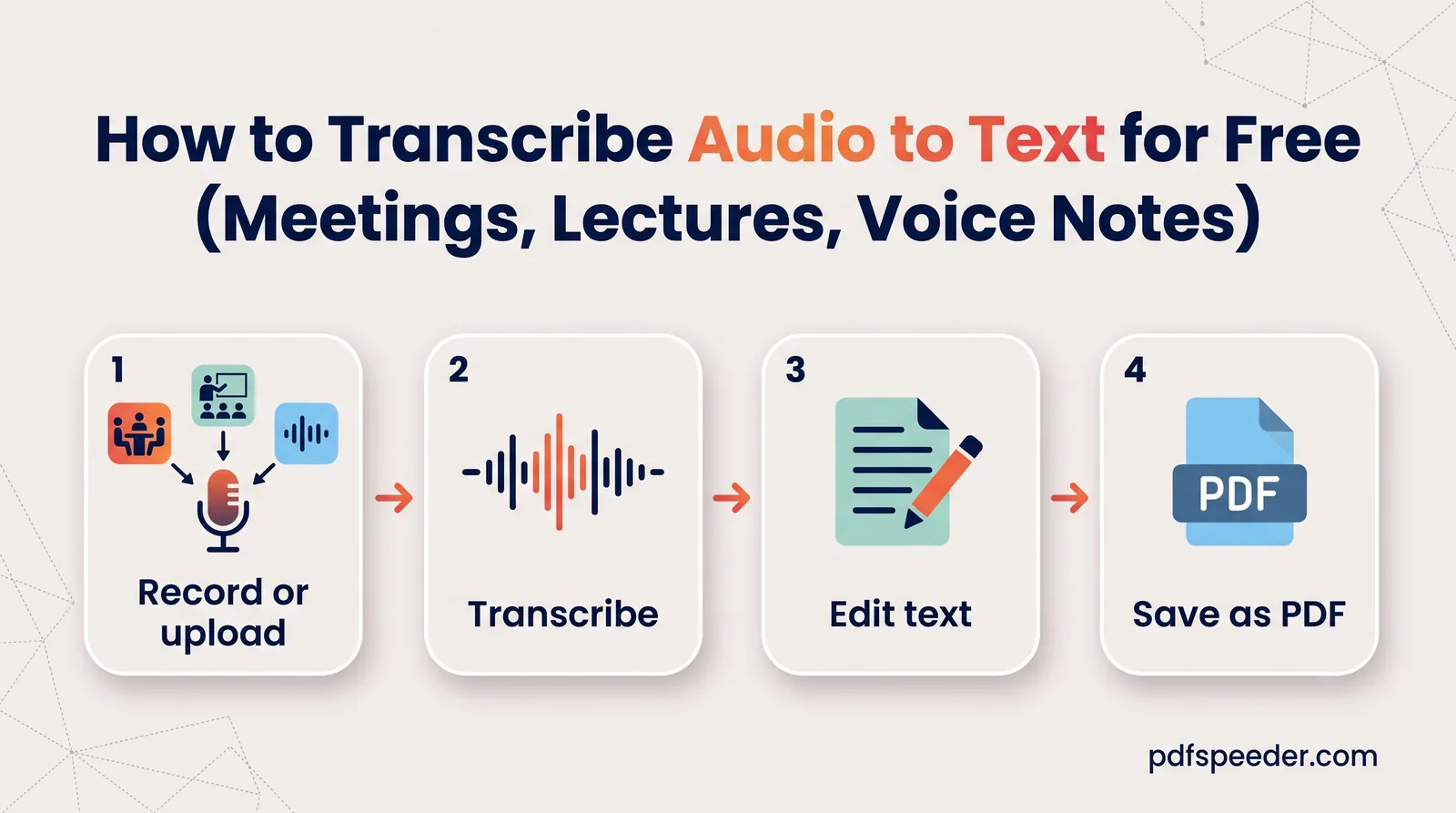
To transcribe audio to text for free, upload the recording, or record straight from your microphone, to a speech-recognition tool, let it produce a draft, then read through and correct it before you use it. Our Speech to PDF tool runs the Whisper speech-recognition model on our own server, handles 99 languages including Hindi and other Indian languages, and lets you edit the transcript before saving it as a PDF. How good that draft is depends mostly on the recording, so that's where to start.
On this page
What you need for an accurate transcript
Speech recognition copes with accents and fast talkers far better than it used to, but it can't recover words it never clearly heard. Before you press record:
- Get the microphone close. A phone on the table in front of the speaker beats a laptop across the room. For a lecture, sit near the front, or ask whether a recording from the lecturer's own microphone is available.
- Cut the background. Fans, traffic, music and side conversations all compete with the voice you want.
- One person at a time. Overlapping speech is the hardest thing to transcribe, and it's also where meeting transcripts go wrong most often.
- Test 30 seconds first. Record a short sample in the real room and transcribe it before you capture an hour-long session.
- Ask first. Let people know you're recording them, and check your organisation's rules for meetings and classes.
Any common format works: MP3, WAV, M4A, OGG, Opus, WebM, FLAC, AAC, MP4 audio, AMR, WMA, AIFF and more, up to 120 MB per file. Phone voice notes are fine as they are, because clear sound matters far more than file quality.
One thing the engine can't do is tell voices apart. There are no automatic speaker labels: a meeting comes out as one continuous transcript, and you add the names yourself while editing.
Transcribe audio to text step by step
- Add the audio. Open Speech to PDF and choose Upload audio (several files at once is fine) or Record, then tap the microphone, allow access and tap again to stop.
- Pick an accuracy model. Base is the recommended starting point; the next section explains when to go bigger.
- Set the language. Leave Auto-detect on, or choose one of the listed languages to lock it in.
- Choose the output. Transcribe (original language) keeps the words as spoken; Translate to English gives an English transcript whatever language was spoken.
- Keep Skip silence on (the default), which passes over long pauses, then select Transcribe.
- Review and edit. Each transcript opens in its own text box, with spell-check, ready for corrections. Tick Show timestamps to add start times.
- Make the PDF. Add an optional title, pick the page size, font size and margins, tick Add page numbers if you want them, and select Convert to PDF. With several recordings, Combine all into one PDF gives you a single document.
Each recording you transcribe counts as one task in the free daily allowance: 2 tasks a day without an account, 3 with a free account, reset at 00:00 UTC (05:30 IST). Saving the transcript as a PDF doesn't use another task, and neither does transcribing the same recording again within 2 hours, for example with a larger model. Your audio is uploaded over an encrypted connection, transcribed on our own server rather than sent to an outside AI service, and deleted as soon as the transcript is ready.
Note: Each file has 10 minutes of processing time on our server. Long recordings on the larger models may not finish in that time, so for anything long, use Base or Small, or split the audio into shorter parts first.
Choose a model: speed vs accuracy
The five models are sizes of the same Whisper engine. OpenAI's Whisper documentation lists their sizes and how fast they run relative to the largest:
| Model in Speech to PDF | Size (parameters) | Relative speed, per OpenAI | Use it for |
|---|---|---|---|
| Tiny | 39 million | about 10× | A quick test, or very clear dictation |
| Base (recommended) | 74 million | about 7× | Voice notes and clear, one-speaker recordings |
| Small | 244 million | about 4× | Accents, mild background noise, most Indian languages |
| Medium | 769 million | about 2× | Difficult audio, or transcripts that must be right |
| Large v3 | 1,550 million | 1× | The best accuracy for short, hard recordings |
OpenAI measured those speeds on a powerful graphics card. Our server works on an ordinary processor, so every model takes longer in practice, but the order stays the same: each step up is slower and usually more accurate. A sensible routine is to try Base, and only move up if the draft has too many mistakes to fix by hand.
Whisper's own documentation also notes that its performance varies widely between languages. English is its strongest; for Hindi, Tamil, Bengali and other languages, start with Small or Medium.
Languages, translation and timestamps
Auto-detect or pick the language?
Auto-detect suits a recording in one language from start to finish. Choose the language yourself when the recording opens with music, silence or a greeting in another language, or when the audio is noisy, because a wrong guess at the start can affect the whole transcript. The list includes English, Hindi, Marathi, Bengali, Telugu, Tamil, Kannada, Malayalam, Gujarati, Punjabi and Urdu, along with major world languages; Auto-detect covers the rest of the 99.
To transcribe Hindi audio, pick Hindi and the transcript comes out in Devanagari. For conversations that switch between Hindi and English mid-sentence, try both Auto-detect and Hindi on a short clip and keep whichever reads better. The PDF draws Devanagari and other Indian scripts properly, and its text stays selectable and searchable.
Translate to English
Translate to English turns speech in another language straight into English text. It's useful for understanding a recording, but it's a translation, not a record of the exact words. For meeting minutes, quotes or anything legal, transcribe in the original language and translate the text separately if you need to.
Timestamps
Show timestamps puts the start time of each spoken segment, such as [12:40], at the beginning of its line. When you transcribe a lecture recording, timestamps let you jump back to the exact spot in the audio to re-check a formula or a name. You can switch them on or off on the review screen without transcribing again.
Edit, export and summarize the transcript
Treat the transcript as a strong first draft. A careful pass usually covers:
- Names and technical terms, which speech recognition guesses at by sound.
- Numbers, dates and amounts, checked against the audio wherever they matter.
- Speakers, added by hand where the conversation changes hands, such as "Priya:" and "Rahul:".
- Paragraphs, broken at topic changes so the text is readable.
From there, the voice to text PDF is one option among several. Paste the text into Word or Google Docs if you'll keep editing, or drop it into our Word Counter, which runs in your browser and shows the word count, reading time and speaking time, handy for minutes or a lecture write-up with a length limit.
For a long meeting or lecture, a summary is often what people actually read. Save the transcript as a PDF and run it through the AI PDF Summarizer, which turns it into key points, an outline or Q&A; each summary is one more task, and our guide on how to summarize a PDF explains which summary type to pick. Working in the other direction, from document to speech, is covered in our guide to having a PDF read aloud.
Next step: record a 30-second test in the room you'll use, run it through Speech to PDF with the Base model, and only switch to a larger model if the draft needs more fixing than you'd like.
Frequently asked questions
Can I transcribe audio to text for free?
Yes, within the free daily allowance: each recording you transcribe counts as one task, and saving the transcript as a PDF is free.
Does the transcript show who said what?
No. Speaker labels aren't added automatically, so the text comes out as one continuous transcript. Add names by hand on the review screen before you export.
Can it transcribe Hindi and other Indian languages?
Yes. Hindi, Marathi, Bengali, Telugu, Tamil, Kannada, Malayalam, Gujarati, Punjabi and Urdu can be chosen directly, and Auto-detect covers the rest of Whisper's 99 languages. Use Small or a larger model for the best results.
How long can my recording be?
Files can be up to 120 MB, and each gets 10 minutes of processing on our server. Split long recordings into parts, especially if you use Medium or Large v3.
Can I turn an MP3 to text without making a PDF?
Yes. Upload the MP3, transcribe it and copy the text from the review box; you only use the PDF step if you want a formatted document.