How to Save a Webpage as a PDF (No Ads, Cut-Offs or Blank Pages)
Save a webpage as a PDF in any browser, fix cut-off text, missing images and blank pages, get a clean ad-free copy of an article, or convert a URL online.

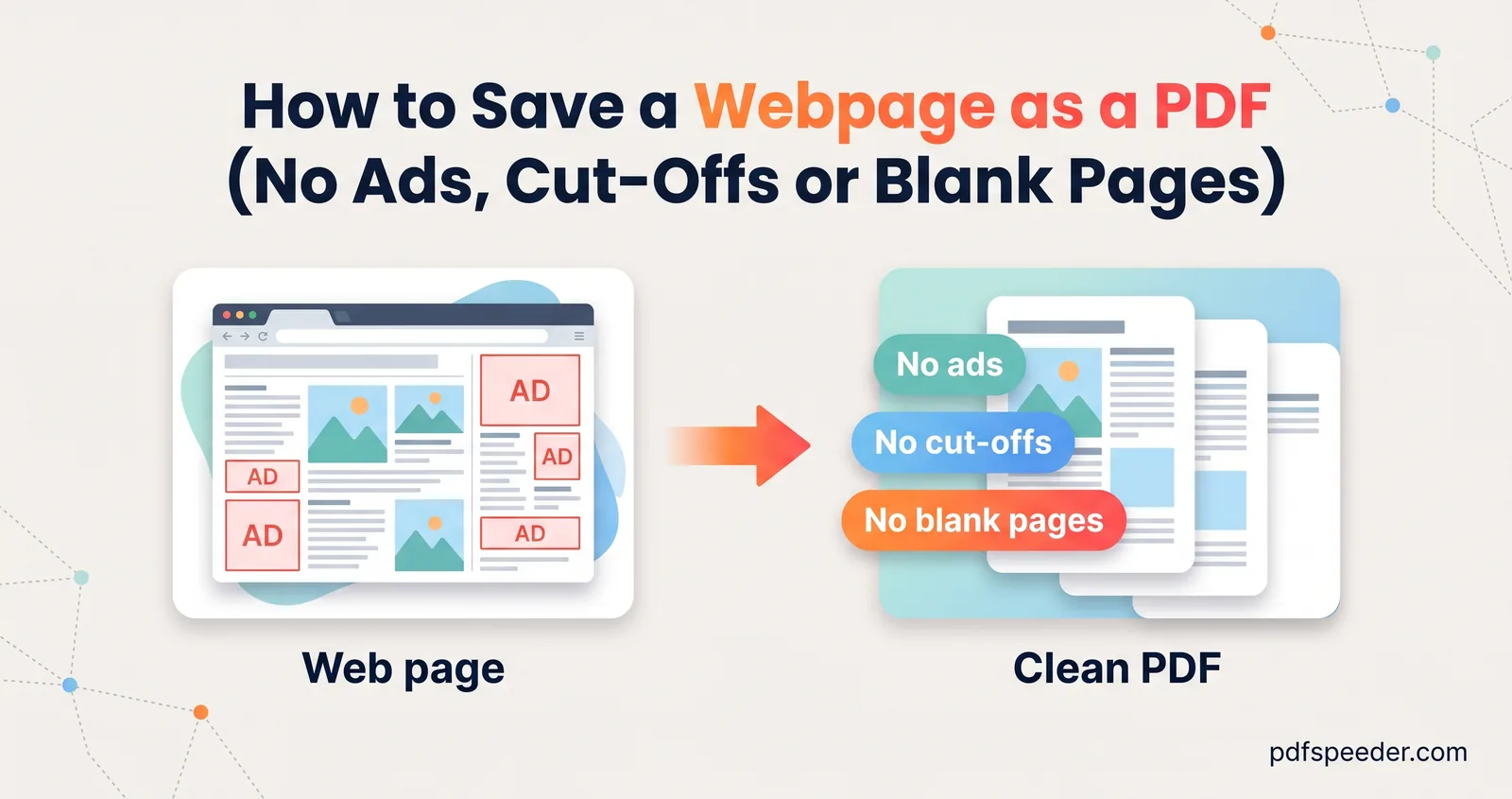
To save a webpage as a PDF, press Ctrl+P (Command+P on a Mac), choose Save as PDF as the destination and click Save. It's built into every desktop browser and works even on pages behind a login, such as a bank statement. Most problems, from missing colours and cut-off tables to ads and pages that print blank, are fixed by a few print settings, a reader view, or a converter that renders the page for print.
On this page
The fastest way to save a webpage as PDF: your browser
Every desktop browser can turn the page you're looking at into a PDF:
- Chrome and Edge: press Ctrl+P, or right-click an empty part of the page and choose Print. Set the destination (or printer) to Save as PDF, then click Save and pick a folder.
- Safari and other Mac apps: choose File > Print, open the PDF pop-up menu at the bottom and choose Save as PDF. Apple's guide to saving a document as a PDF also mentions Save to Web Receipts in the same menu, which files the PDF in a Web Receipts folder inside Documents: handy for online orders.
- Phones: Android's print screen and the iPhone's Share sheet both save PDFs; our guide on how to print to PDF has the steps for each.
Because the PDF is made by your own browser, it includes whatever you can see, including pages that need you to be signed in. Online converters fetch the page themselves, so they can't.
Settings that fix most problems
The print dialog in Chrome and Edge hides its most useful options under More settings. Microsoft's guide to printing in Microsoft Edge describes each one, and Chrome's dialog works the same way:
| Setting | What it does | Change it when |
|---|---|---|
| Layout | Portrait or landscape | Tables, charts or code run off the right edge |
| Paper size | A4, Letter and others | A form or office expects A4 and you're getting Letter |
| Margins | Default, None, Minimum or Custom | You want more on each page, or a dark page without white edges |
| Scale | Shrinks or enlarges the content | Wide content is cut off, or the text is too small |
| Pages | All, odd, even or a custom range such as 1-3 | You want to skip the comments and footer at the end |
| Headers and footers | Adds the date at the top and page numbers at the bottom | You want a clean copy without them |
| Background graphics | Prints background colours and images | Coloured boxes, highlights or logos are missing |
Microsoft's own tip for the last one is worth remembering: if the print preview looks different from the web page, turn on Background graphics.
Scale and layout fix the commonest complaint, text cut off at the right. In a test with Chromium, the engine behind Chrome and Edge, a 1,400-pixel-wide table on a portrait A4 page lost three of its ten columns. Setting the scale to 75%, or switching to landscape, brought all ten back.
Get a clean, ad-free PDF of an article
Before reaching for anything else, look at the print preview. Many sites have a print stylesheet that strips menus and ads on its own: when the Wikipedia article on PDF was rendered for print in a test, the navigation menus didn't appear at all. If the preview is still cluttered, try these:
- Reader views. Microsoft suggests Immersive Reader for clutter-free printing in Edge: select its icon in the address bar or press F9, then print. In Safari on a Mac, Apple's Reader shows an article without navigation or other distractions; click the Page menu button in the Smart Search field, choose Show Reader, then save as PDF. Reader appears only on pages it recognises as articles.
- Print just the part you need. Select the text and images you want, right-click the selection and choose Print, as Microsoft's Edge guide describes.
- The site's own button. Banks, airlines and shops often offer a Print or Download PDF link for statements, tickets and invoices. It produces a cleaner file than printing the whole screen.
Reader views are the quickest way to save an article as PDF for reading later, because they also drop the comment section, pop-ups and "related stories" blocks.
Convert a URL to PDF online
When your browser's print view looks broken, or you want several pages in one tidy file, HTML to PDF does the job on our server in a real Chromium browser. It's an HTML to PDF online converter that takes three kinds of input:
- From URL: paste one or more addresses, one per line.
- Upload files: HTML files up to 25 MB each.
- Paste code: up to 10 MB of HTML.
Then choose the page size (A4, US Letter, US Legal, A3, A5 or Tabloid), orientation, margins from None to Large, and a scale from 50% to 150%. Print background graphics is on by default. You can add page numbers, a title header or a page range, follow the page's own print size, and combine several pages into one PDF. A preview shows the PDF before you download it.
The page is rendered with its print stylesheet, so text stays selectable and links stay clickable. In a test, the Wikipedia article on PDF came out as 27 A4 pages with 895 working links; at 90% scale with page numbers, it took 23 pages.
Know its limits before you rely on it:
- No logins. The converter opens each page in a fresh browser with no cookies, so anything behind a sign-in comes out as the login page. Use your browser's Save as PDF for those.
- Public addresses only. To keep our server safe, private, local and internal network addresses are refused before anything is loaded.
- Daily allowance. Each URL or file counts as one task: 2 a day without an account, 3 with a free account, reset at 00:00 UTC (05:30 IST). Files are deleted automatically within 2 hours.
Image-heavy pages can make big PDFs. If yours is too large to send, run it through Compress PDF, which also counts as a task, or try the other fixes for a PDF that's too large to email.
Troubleshooting cut-off text, missing images and blank pages
| Problem | Likely cause | Fix |
|---|---|---|
| Right side of tables or code cut off | Content wider than the page | Landscape, or scale to 75% or less |
| Images missing further down the page | The site loads images only as you scroll | Scroll to the bottom first, then print |
| Only the first screenful printed | The content sits in a scrolling panel | Use the site's print button, a reader view or a selection |
| White or faint text on a white page | A dark-mode site printed without backgrounds | Turn on Background graphics, or switch the site to light mode |
| Coloured boxes and logos missing | Background graphics turned off | Tick Background graphics |
| A blank or near-empty PDF | Content drawn late, or hidden for print | Wait for the page to finish loading, or use a reader view |
Two of these came straight out of tests. On a long test page, images using the browser's built-in lazy loading printed fine, but the two images that the page's own script loads as you scroll came out empty, because nothing scrolled. A converter can't scroll for you, but you can: scroll to the end of the page in your browser and wait a moment before pressing Ctrl+P.
The other was a web-app style page, where the text scrolls inside a panel rather than the window. Only the first screenful printed: 20 of its 120 paragraphs, on a single page. Webmail, dashboards and online banking often work this way, which is why their own print buttons exist.
Dark pages are tricky either way. With backgrounds turned off, Chromium printed a white page and darkened the light text only to mid-gray (#eeeeee became #9a9a9a), which is faint on paper. With backgrounds on, it printed dark pages inside white margins; set Margins to None if that bothers you.
Next time you need a page, try Ctrl+P with the settings above first, and keep HTML to PDF for the pages your browser can't print cleanly.
Frequently asked questions
How do I save a web page as PDF in Chrome?
Press Ctrl+P (Command+P on a Mac), set the destination to Save as PDF and click Save. Open More settings to change the margins, scale or background graphics first.
Why are images missing from my saved PDF?
The page probably loads images only as you scroll down. Scroll to the bottom in your browser, wait for the images to appear, then save as PDF.
How do I save a webpage as PDF without ads?
Check the print preview first, since many sites hide ads when printing. Otherwise use a reader view, such as Immersive Reader in Edge or Reader in Safari, and print from there.
Can I convert a URL to PDF online?
Yes. HTML to PDF renders a public URL in a real Chromium browser and keeps text and links working, but it can't open pages that need a login or private network addresses.
Why does my PDF have only one page when the web page is long?
The site probably shows its content inside a scrolling panel, so only the visible part prints. Use the site's own print or download button, a reader view, or select the content and print the selection.