How to Convert a Word Document to PDF on Your Phone
Convert Word to PDF on your phone with the Word app, Google Docs, Apple's Pages or a browser converter, and fix the font swaps that move your line breaks.

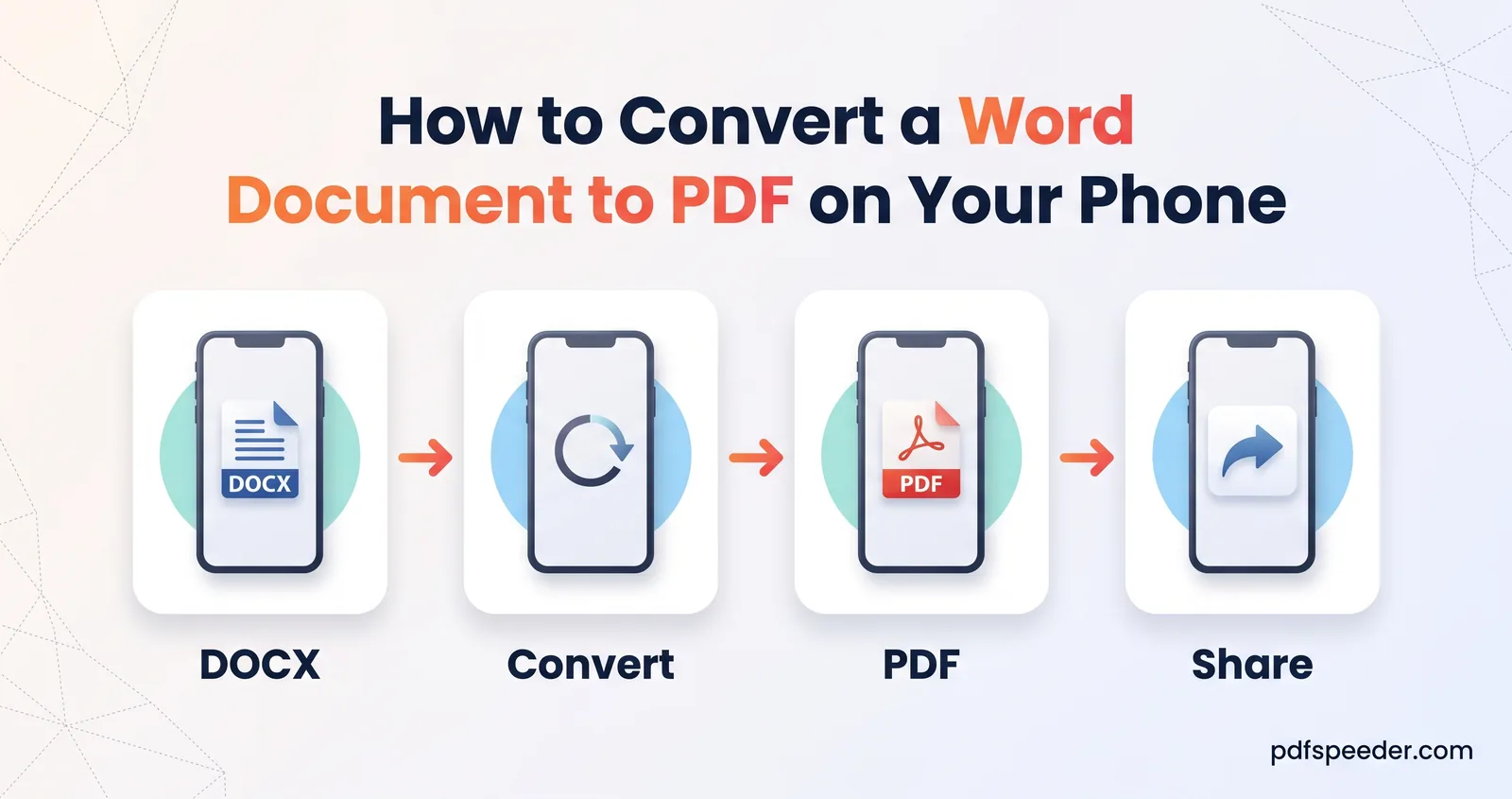
To convert a Word document to PDF on your phone, open it in the Microsoft Word app and save a PDF copy: on Android through Print and Save as PDF, on an iPhone through Export and PDF. Google Docs and Apple's free Pages app can do the same, and a browser converter works on any phone without installing anything. Whichever you use, look through the PDF before you send it, because phones often swap fonts, and a swapped font moves line and page breaks.
On this page
Using the Microsoft Word app
Word's own app is the closest you'll get to desktop Word on a phone, since it lays the document out with Word's engine. Microsoft's guide to saving a PDF on your mobile device gives these steps.
On Android:
- Open the document in Word.
- Tap the three-dot icon, then File, then Print.
- Tap Select a printer and choose Save as PDF.
- Tap the PDF icon, pick a folder, rename the file if you like, and tap Save.
On an iPhone:
- Open the document in Word.
- Tap the three-dot icon, then Export.
- Choose PDF and save it where you want it.
Fonts are the Word app's other advantage. Microsoft says it has moved its Office fonts to the cloud, where they're available to Office subscribers with an internet connection, so a subscriber's phone is less likely to swap them for something else.
Using Google Docs on your phone
The Google Docs app can open a Word file and export it as a PDF. Google's guide to using Google Docs on Android lists DOC, DOCX, ODT, RTF, TXT and HTML among the files the app opens and edits, and PDF among the formats it exports; the iPhone app opens DOC and DOCX and exports DOCX or PDF.
To make the PDF, open the Word file in the Docs app, tap the three-dot More menu inside the document and look for the option to share or export, then pick PDF and choose where to save or send it. Google's help doesn't spell out every menu step, and the labels change between app versions, so follow the word "PDF" if yours looks different.
Keep one thing in mind: Google Docs lays the document out with its own engine and fonts, not Word's. Google also notes that embedded charts and videos in Word files are converted to images. For a simple letter that's fine; for a CV or a form lined up to the edge of the page, compare the PDF with the original.
iPhone: open it in Pages and export
If you don't have Word on your iPhone, Apple's free Pages app does the job. Apple's Pages guide confirms that Pages can open and edit Word documents, with .doc or .docx endings, and save them in PDF format:
- Open Pages and tap the document, or tap Browse to find it in Files or iCloud Drive.
- Tap the More button in the toolbar, then Export, then PDF.
- In Layout Options, choose whether to include comments, then tap Export.
- Choose how to send or save the PDF, for example Save to Files.
Pages tells you when a font is missing. A notification appears briefly at the top of the page; tap it, then Resolve Font Warnings, to pick replacements. Apple's guide adds that you can install missing fonts from the App Store.
Convert Word to PDF in your phone's browser
A browser converter is handy when you don't want to install an app or sign in to anything. Word to PDF works the same way in Chrome on Android and Safari on an iPhone:
- Open Word to PDF and tap the upload area to pick your file. It takes DOCX, DOC, RTF and ODT files of up to 50 MB each, and several at once.
- For a single document, you can enter a page range, such as 1-3, to convert only part of it.
- Tap Convert to PDF and check the preview, which shows the actual PDF.
- Download it. Several files come together as a ZIP.
The file is uploaded over an encrypted connection, converted on our server and deleted automatically within 2 hours. Our server lays the document out with its own installed fonts, keeping fonts, tables and layout as closely as possible, so the preview is worth a careful look. Leave the extra settings on the page as they are: the bookmark, tagged-PDF and PDF/A options aren't applied at the moment.
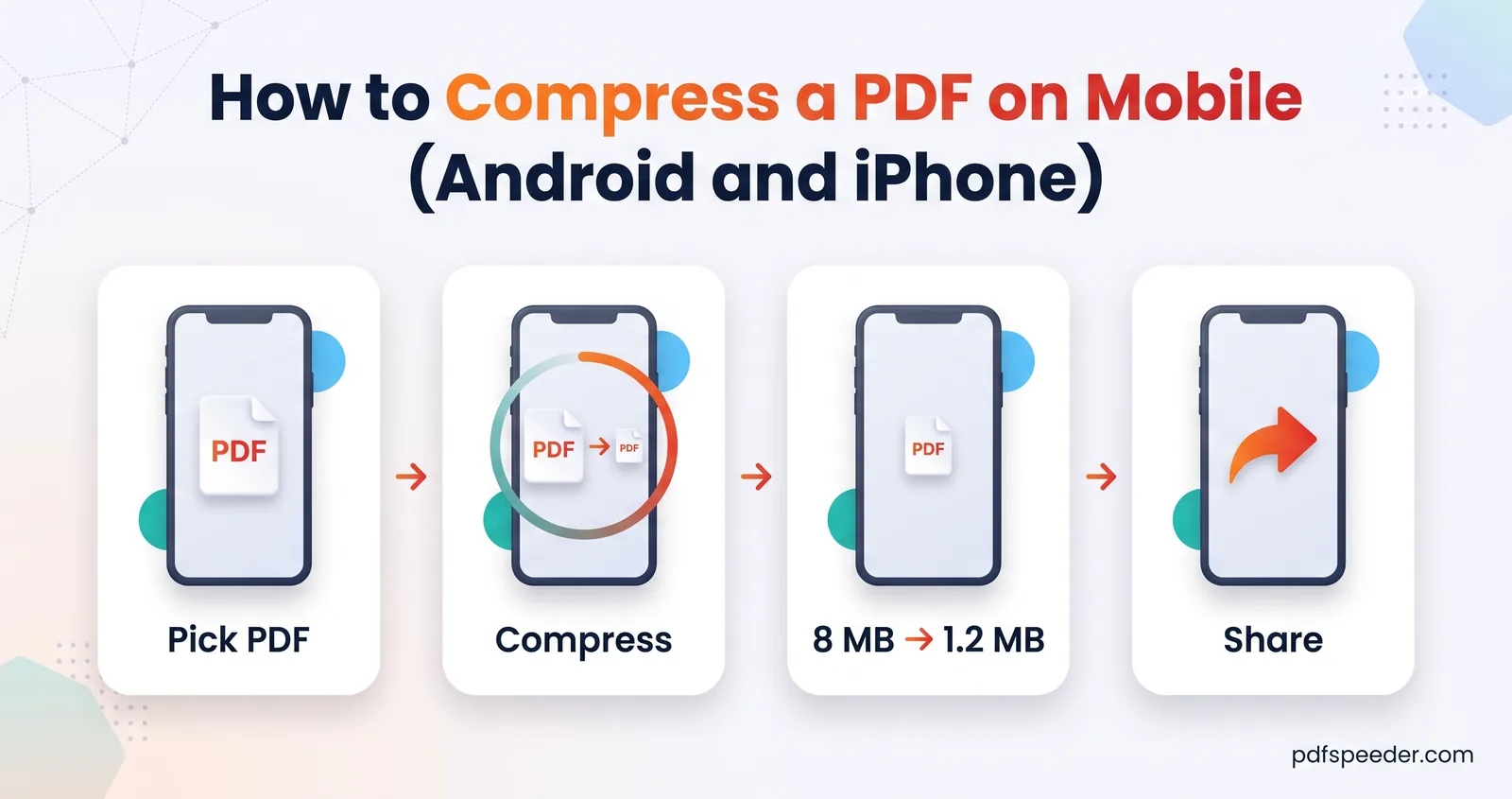
Each document counts as one task in the free daily allowance: 2 a day without an account, 3 with a free account, reset at 00:00 UTC (05:30 IST). If the PDF is too big to upload or email, Compress PDF shrinks it in the same browser, and our guide to compressing a PDF on mobile covers finding and sharing the file afterwards.
Fonts look different? Here's why
A Word file doesn't contain finished pages. Whatever opens it lays the pages out again with the fonts it has, and when a font is missing, it substitutes another with different letter widths. Lines then break in new places, and the change ripples down the document.
To see how much that matters, the same 41-page report was exported from Word four times with only the font changed:
| Font | Pages |
|---|---|
| Times New Roman | 38 |
| Calibri (original) | 41 |
| Arial | 42 |
| Verdana | 49 |
Eight pages of difference from a font swap alone. A one-page CV can just as easily spill a single line onto a second page.
Signs that your PDF has had a font swap:
- The typeface looks different, or bold and italic text has changed weight.
- There's an extra page, often with only a line or two on it.
- A heading sits alone at the bottom of a page, or a table breaks across pages.
- Symbols, such as the ₹ sign or a bullet, show as boxes.
The fixes, from easiest to most thorough:
- Use the Word app where you can, since it can use Office's cloud fonts.
- Resolve font warnings in Pages, or install the font on your phone.
- Change the document's font to one the phone already shows correctly, then convert again.
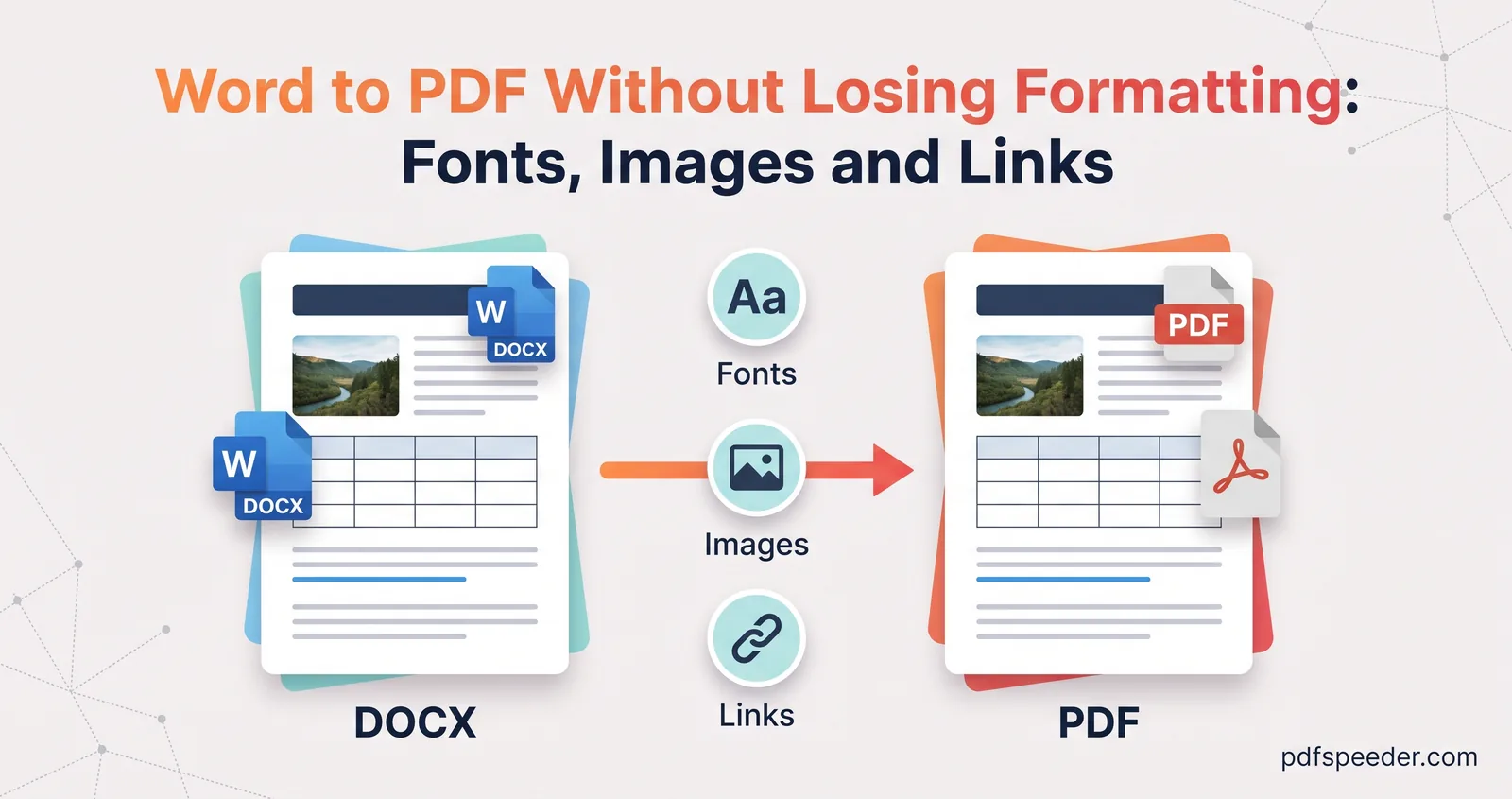
- Convert on a computer that has the font installed. Our guide to Word to PDF without losing formatting covers embedding fonts, image quality and links.
Microsoft adds that embedding custom fonts in a document, under File > Options > Save in desktop Word, helps its own online PDF conversion use your fonts instead of substitutes.
Next time you need a PDF on the go, start with whichever of these apps your phone already has, and open the PDF once before you hit send.
Frequently asked questions
How do I convert Word to PDF on Android?
In the Word app, tap the three-dot icon, then File, Print, Select a printer and Save as PDF. Without the app, use a browser converter such as Word to PDF.
How do I convert Word to PDF on an iPhone?
In the Word app, tap the three-dot icon, then Export and PDF. Apple's free Pages app also opens Word files and exports them as PDFs through More, then Export.
Can I convert a Word file to PDF free on mobile?
Yes. Pages and Google Docs are free apps, and Word to PDF is free within the daily allowance.
Why does my PDF look different from the Word document?
Usually a font was missing on the phone or server that made the PDF, so a substitute with different letter widths changed the line and page breaks.
Can I convert Google Docs to PDF on my phone?
Yes. Google lists PDF among the formats the Google Docs app exports on both Android and iPhone; you'll find it in the document's three-dot More menu.