How to Convert PPT to PDF With Speaker Notes or Handouts
Convert PPT to PDF with notes in PowerPoint, PowerPoint for the web or Google Slides, pick the right handout layout, and see what happens to hidden slides.

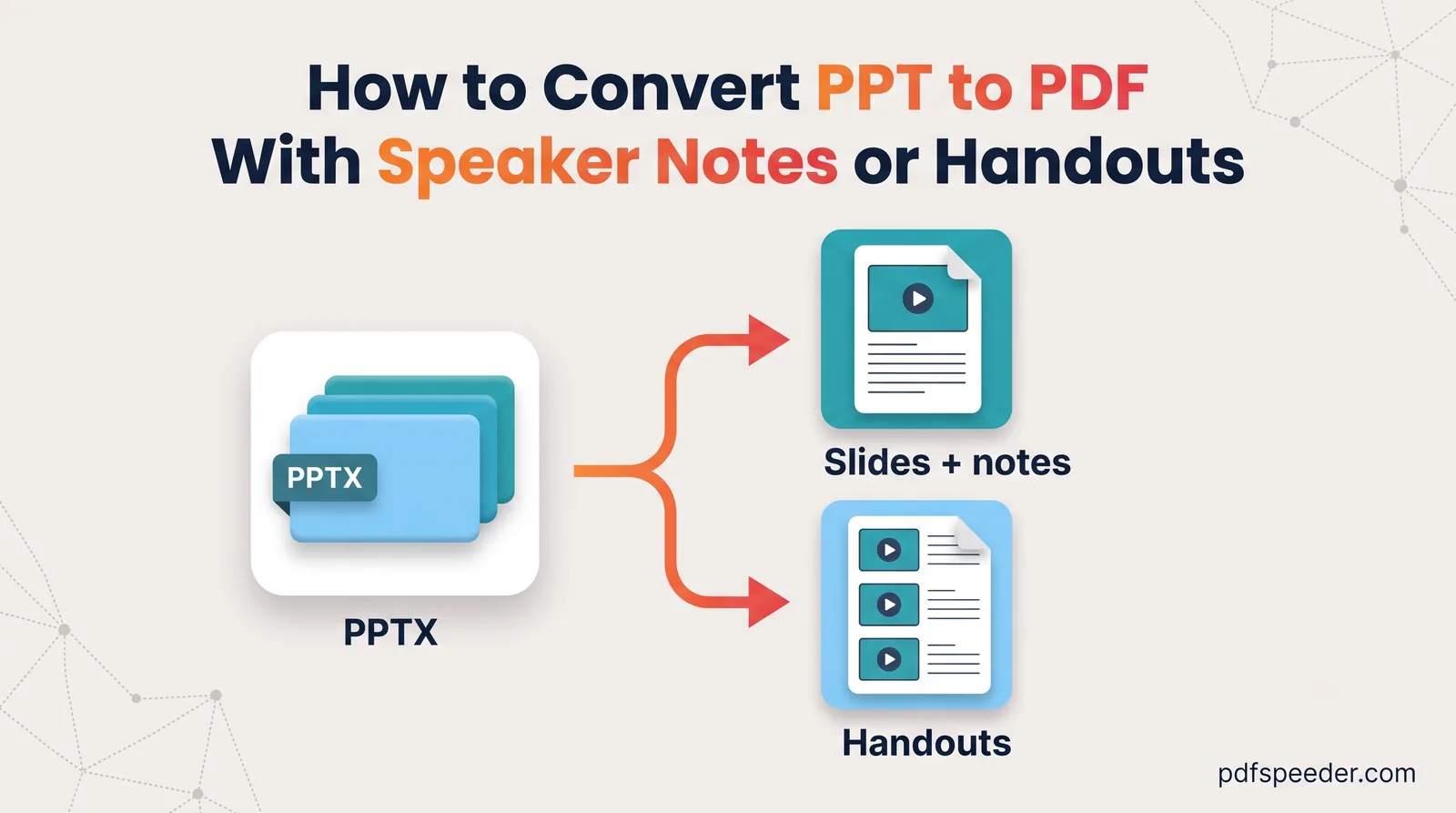
To convert a PPT to PDF with notes in PowerPoint for Windows, choose File > Export > Create PDF/XPS Document, click Options, set Publish what to Notes pages, then publish. Each slide then fills the top half of a page, with its speaker notes underneath. On a Mac, PowerPoint's own Save as PDF can't include notes, so you print the Notes layout to PDF instead, and PowerPoint for the web and Google Slides can do the same without the desktop app. Here's every route, plus how to choose a handout layout people can actually read.
On this page
Slides, notes pages, handouts or outline?
PowerPoint can turn the same deck into four very different PDFs. Here's what each gave for a 12-slide widescreen test deck with one hidden slide:
| Export | What each page shows | Pages for 11 visible slides | Best for |
|---|---|---|---|
| Slides | One full slide | 11 | Sharing or presenting from the PDF |
| Notes pages | Slide on top, speaker notes below | 11 | Presenters, rehearsal, sending a talk to someone who missed it |
| Handouts | 2, 3, 4, 6 or 9 slides | 2 to 6 | Students and audiences taking notes |
| Outline | Only the text typed in slide placeholders | 1 | Proofreading and reviewing the wording |
Handouts at 3 slides per page leave lines beside each slide for writing, which is why teachers like them. The outline leaves out pictures and anything typed into a separate text box rather than a placeholder: in the test, two extra text boxes on slide 3 didn't appear in it at all.
In PowerPoint: export with notes
Windows: Export with Notes pages
Microsoft's guide to saving PowerPoint presentations as PDF files gives this route:
- Choose File > Export, select Create PDF/XPS Document, then Create PDF/XPS.
- Pick a folder and a file name.
- Under Optimize for, keep Standard for printing, or choose Minimum size for email.
- Click Options. Under Publish what, choose Notes pages for slides with notes, or Handouts and a number in Slides per page. The same dialog lets you include hidden slides and frame each slide.
- Click OK, then Publish.
Windows: Print to PDF
The Print screen offers the same layouts and is handy if you also want grayscale. Choose File > Print, pick Microsoft Print to PDF as the printer, then open the print layout menu and choose Notes Pages, a handout layout or Outline. Microsoft's guide to printing slides, handouts or notes lists the options, including colour, grayscale and pure black and white. Then click Print and name the file.
Mac: print the Notes layout to PDF
Microsoft is clear that on a Mac, PowerPoint's Save As and Export to PDF can't save notes, handouts or hidden slides. Printing can:
- Choose File > Print.
- Under PowerPoint, choose Notes (or a Handout option) from the Layout menu.
- Open the PDF menu at the bottom of the dialog and choose Save as PDF.
Online: convert PPT to PDF with notes
No PowerPoint on this computer? You still have two free ways to get a PowerPoint to PDF with notes:
- PowerPoint for the web. Open the deck from OneDrive, choose File > Print, then pick notes pages or handouts. Microsoft describes the notes page as the slide on the upper half with the notes on the lower half, and the web handout as three slides on the left with note-taking lines beside them. In Chrome, set the destination to Save as PDF.
- Google Slides. Upload the PPTX, then choose File > Print settings and preview, click 1 slide with notes in the toolbar and then Print, as Google's help describes. Save as PDF from the print window. Google Slides lays the deck out with its own engine, so check any unusual fonts.
What about our PowerPoint to PDF converter? It turns PPTX, PPT, PPS, PPSX and ODP files of up to 100 MB into PDFs on our server, one page per slide, with an optional slide range and a preview before you download. Fonts, images and layout are kept as closely as possible.
It can't add speaker notes yet, though: its page lists notes, handout and outline options, but the server currently produces slides only, whatever you pick. Use one of the routes above when you need notes.
Files are uploaded over an encrypted connection and deleted automatically within 2 hours, and each presentation counts as one task in the free daily allowance (2 a day without an account, 3 with a free account).
Handouts: how many slides per page?
More slides per page saves paper, but text shrinks fast, and not always the way you'd expect. In the test deck, ordinary 28-point bullet text printed at these sizes:
| Layout | 28-point text prints at | 18-point text would print at |
|---|---|---|
| Full slides | 28 pt | 18 pt |
| Notes pages | 12.6 pt | 8.1 pt |
| Handouts, 2 per page | 14 pt | 9 pt |
| Handouts, 3, 4 or 6 per page | 6.5 pt | 4.2 pt |
| Handouts, 9 per page | 4.1 pt | 2.6 pt |
printed size = text size on the slide × handout scale
scale measured: 2 per page 0.50, notes page 0.45, 3/4/6 per page 0.23, 9 per page 0.15
The surprise is the middle row. With widescreen 16:9 slides on a portrait page, the slides in 4 and 6 per page layouts come out exactly the same size, because the column width limits them, not the height. So for multiple slides per page in a PDF, choose 6 rather than 4: same size, a third fewer pages. Choose 3 when people need writing space, 2 when the text must be easy to read, and save 9 for a one-glance overview.
Print one handout page and hold it at arm's length before you print fifty. If the body text looks tiny, drop to fewer slides per page.
Hidden slides, animations and file size
Hidden slides are left out by default. In the test export, the hidden slide didn't appear in any layout. On Windows, tick the hidden-slides option in the Export dialog's Options and check the result; on a Mac, where that option doesn't exist, unhide the slide first (Slide Show > Hide Slide turns it on and off) and hide it again afterwards.
Animations don't exist in a PDF: every slide is shown in its finished state, with everything on it visible at once. In the test, a text box set to appear on click and another set to disappear on click were both printed on the same slide. If a slide uses animations to reveal answers or to swap one picture for another, check that page before you send the PDF, and consider splitting the build across separate slides.
File size depends on the photos and videos in the deck rather than on the layout: in the test, every layout of the text-only deck weighed between 131 KB and 154 KB. For a photo-heavy deck, choose Minimum size under Optimize for in the Export dialog, or run the finished PDF through Compress PDF, which uploads it to our server, offers three levels and counts as one task too.
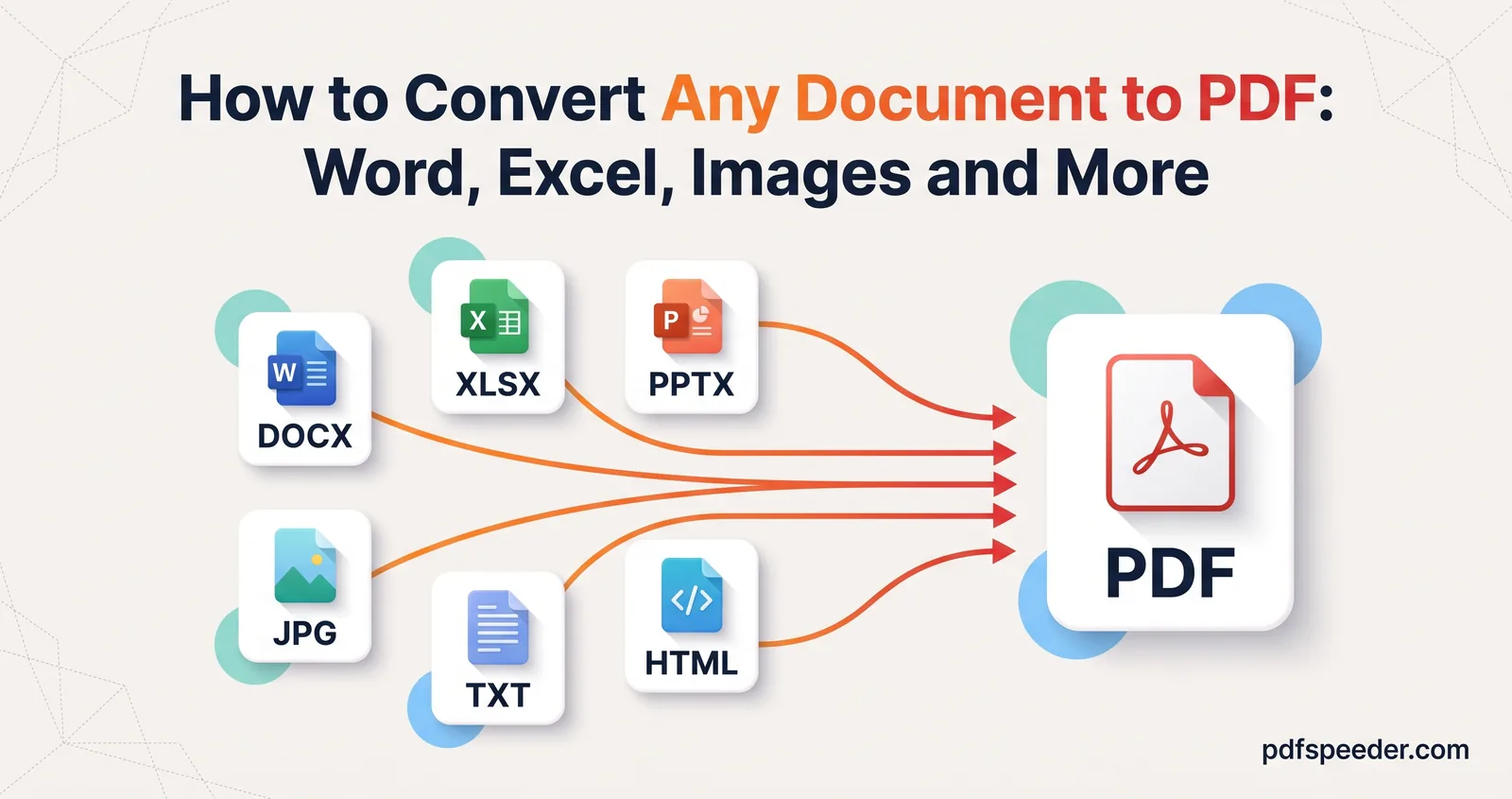
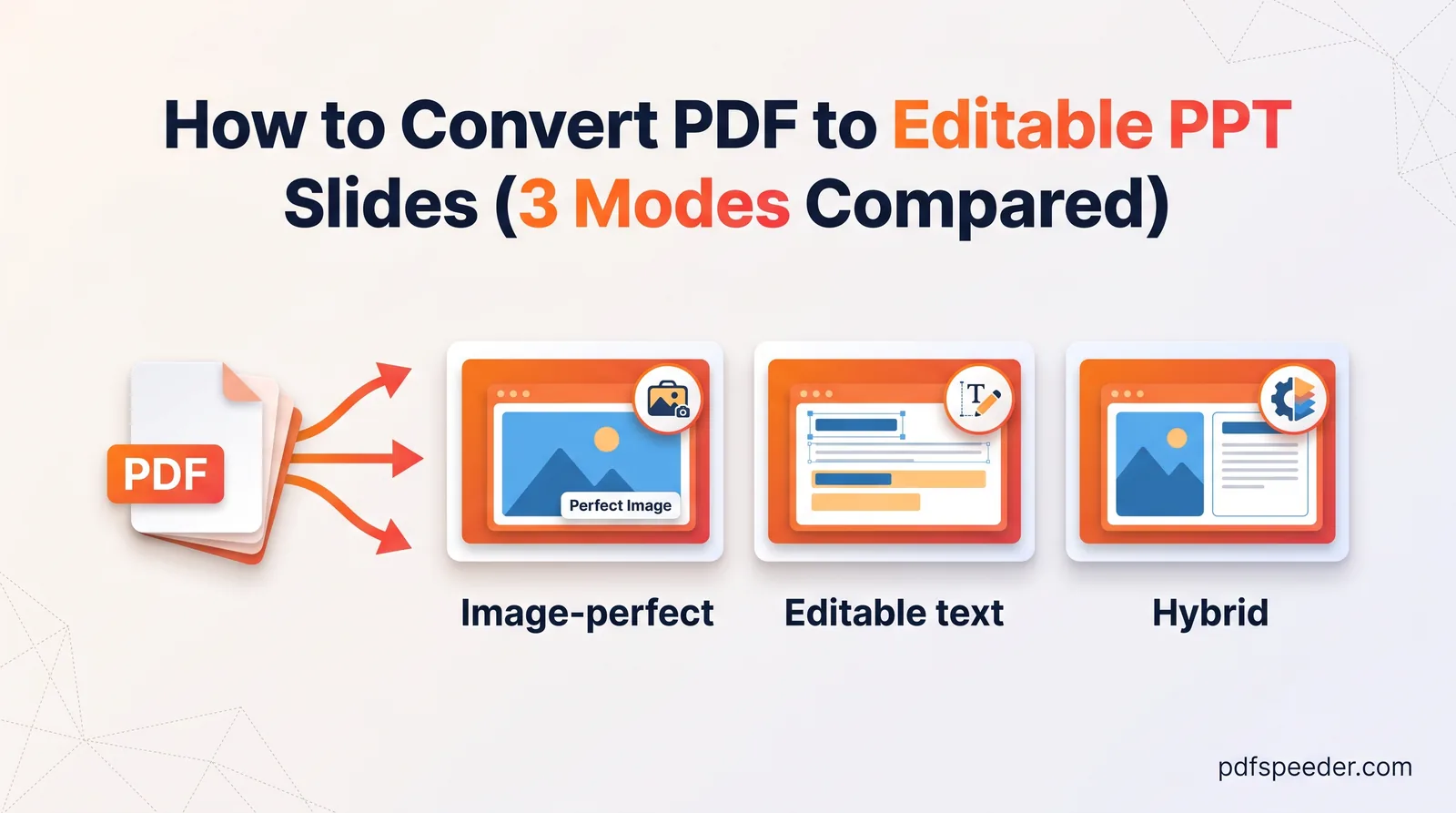
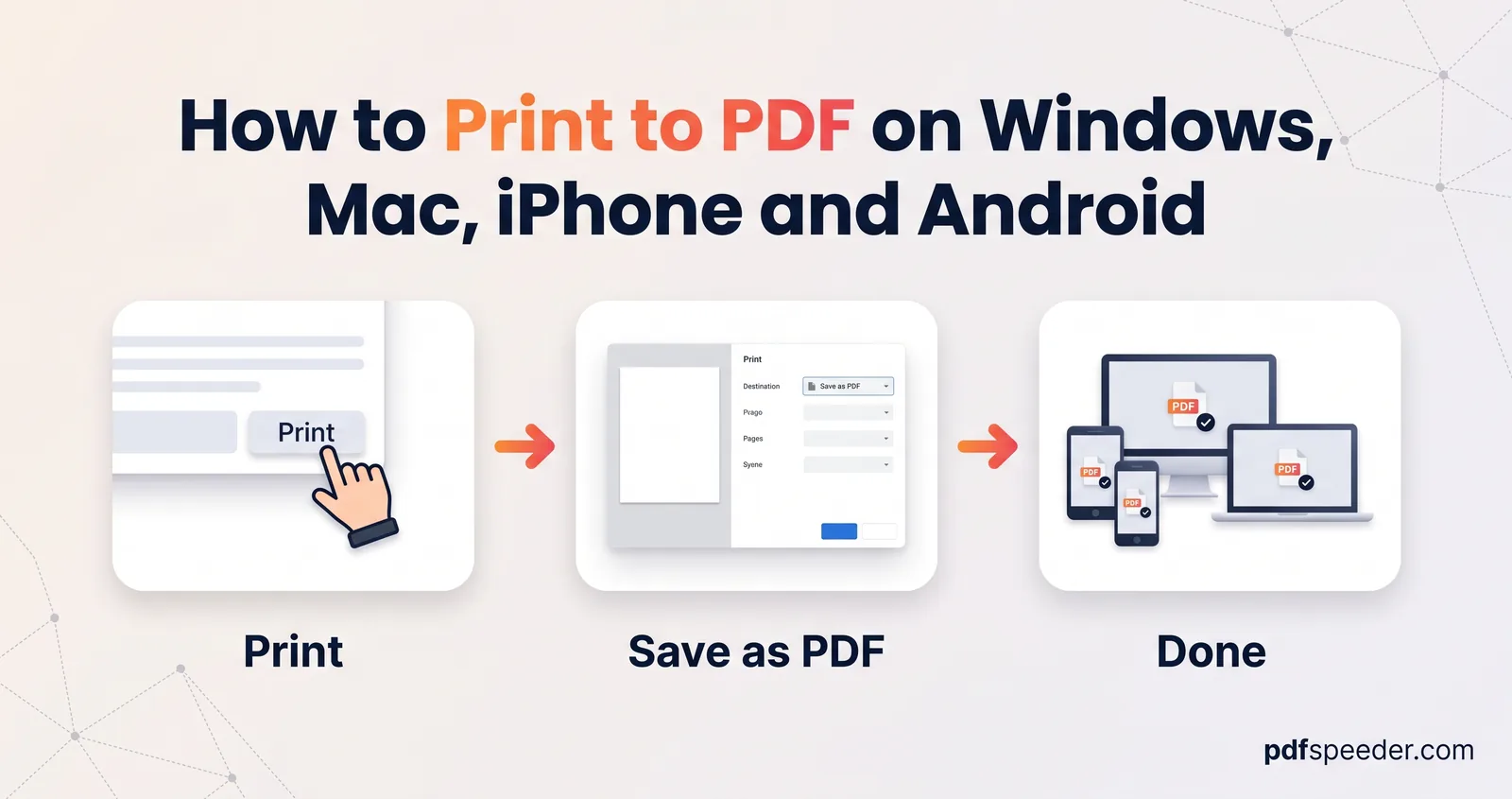
For other file types, our guide to converting any document to PDF covers Word, Excel and more, and how to print to PDF explains the print-to-PDF route on every device. Going the other way, our guide to converting a PDF to editable PPT compares the three conversion modes.
Open your deck now, export one notes page and one 6-per-page handout, and check them side by side before you send either.
Frequently asked questions
How do I save PowerPoint as PDF with notes?
On Windows, use File > Export > Create PDF/XPS Document, then Options > Publish what > Notes pages. On a Mac, use File > Print, choose the Notes layout, then PDF > Save as PDF.
Why are my speaker notes missing from the PDF?
The export was set to slides, which is the default, or it was made with PowerPoint for Mac's Save As, which can't include notes. Export again with Notes pages selected, or print the Notes layout to PDF.
How many slides per page should a handout have?
Six suits most audiences: with widescreen slides they print at the same size as four per page. Choose three if people need space to write, and two if the slides carry small text.
Can I print slides with notes as PDF online?
Yes. PowerPoint for the web and Google Slides can both print slides with their notes, and you choose Save as PDF in the print window.
Are animations kept when I convert PPT to PDF?
No. Each slide appears in its finished state with all objects visible, including ones that would appear or disappear on click.