How to Convert PDF to Editable PPT Slides (3 Modes Compared)
Convert a PDF to editable PPT slides: compare image-perfect, editable text and hybrid modes, use OCR for scanned slides, and clean up the result.

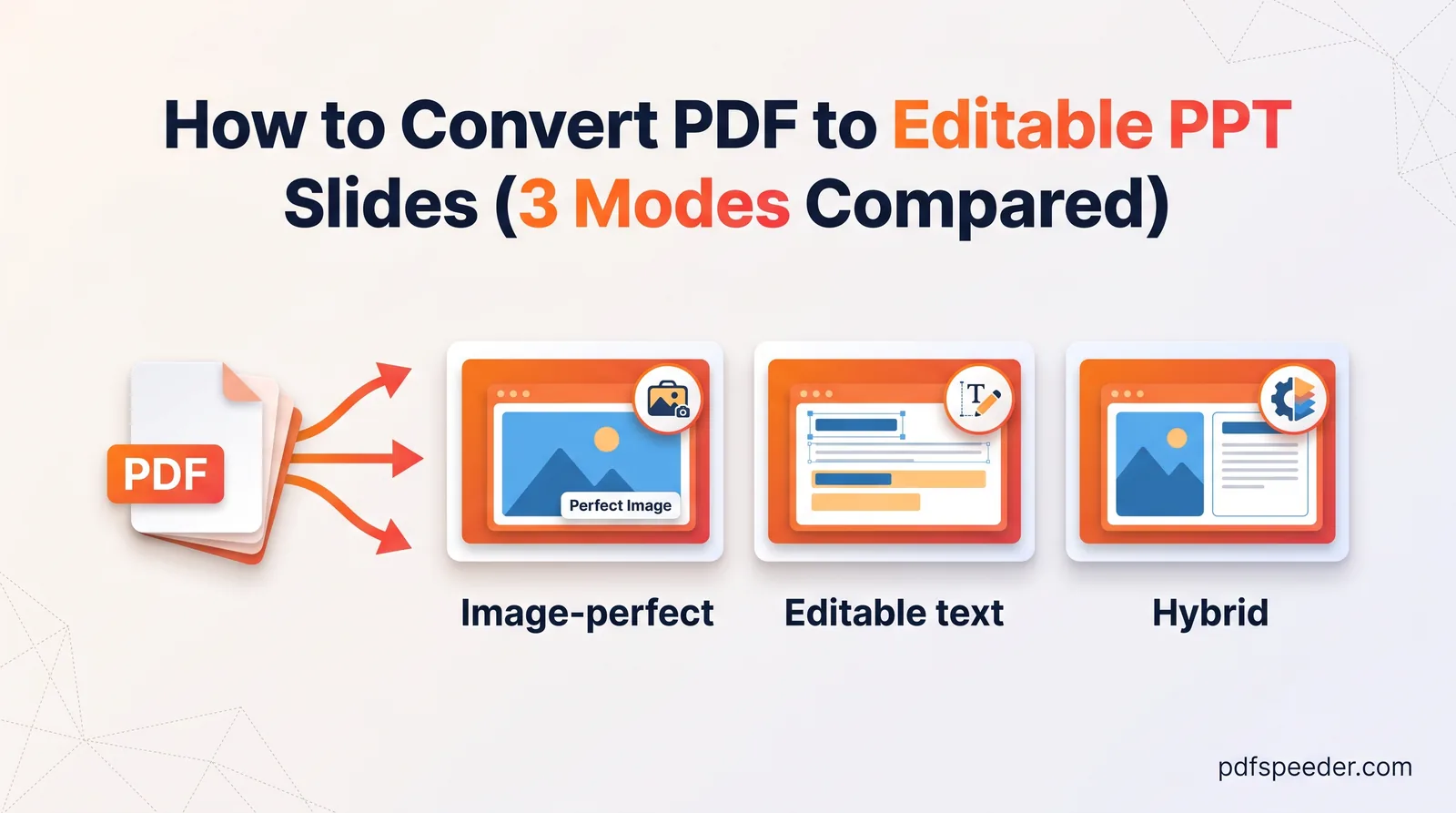
To convert a PDF to editable PPT slides, run it through a PDF to PowerPoint converter and choose what matters more: text you can edit, or slides that look exactly like the PDF. An editable-text conversion gives you real text boxes but loses pictures and layout; an image conversion looks identical but nothing on the slide can be edited; a hybrid looks identical and adds hidden text you can search and copy. Here's how the three compare on a real deck, what to do with scanned slides, and how to tidy the result.
On this page
Can a PDF really become an editable PowerPoint?
Only partly, and it helps to know why. A PDF records where each character and shape is drawn on the page. It doesn't remember the text boxes, placeholders, tables or slide master that PowerPoint used to build the slide, so any converter has to guess them back.
Microsoft says the same about its own PDF conversion in Word: it works best with files that are mostly text, and pages full of charts or graphics may come through as pictures whose text can't be edited. Slides are exactly that kind of page.
So if you can get the original PPTX from whoever made the deck, do that first. If you can't, pick the conversion that suits what you'll do next.
Three conversion modes compared
PDF to PowerPoint offers three modes. To see what each really produces, a 6-slide sample deck exported from PowerPoint, with bullet lists, a photo, a table and a labelled shape, was converted in each:
| Mode | What each slide contains | Can you edit it? | Looks like the PDF? | Sample deck size |
|---|---|---|---|---|
| Image-perfect (default) | One picture of the page | No | Yes | 516 KB |
| Editable text | A title box and a body text box | Yes | No | 80 KB |
| Hybrid | The page picture plus invisible text boxes | Search and copy only | Yes | 556 KB |
Image-perfect turns each page into a picture at a resolution you choose, from 72 to 300 DPI. The default of 150 DPI gave 2,001 × 1,125 pixels per widescreen slide, a little more than a full HD projector shows. At 72 DPI it was 960 pixels wide, which looks soft on a big screen; at 300 DPI the deck grew to 1.23 MB. Nothing on the slide is editable, but by default the page's text is copied into the speaker notes, so you can still reuse the words.
Editable text is the mode for PDF to PPT with editable text, and it keeps the words only. In the test, each slide got its title in a 28-point box and everything else in one 14-point box. The table turned into lines of plain text ("Pipes 12,00,000 9,40,000"), the photo slide kept only its title, and the label inside the shape was added to the end of the body text. It's a quick start for rebuilding a deck, not a copy of it.
Hybrid puts the page picture on the slide and lays invisible text boxes over it, one for each run of text: eight on a typical slide in the test. You can search the deck and copy text out, but typing into those boxes doesn't change the picture underneath, so treat it as an image deck that's searchable.
| You want to | Choose |
|---|---|
| Rewrite the content or rebuild the deck in your template | Editable text |
| Present or share the slides exactly as they look | Image-perfect |
| Present them, and still find and copy text | Hybrid |
How to convert a PDF to editable PPT, step by step
- Open PDF to PowerPoint and add your PDF (up to 100 MB). It runs in your browser, so the file isn't uploaded anywhere.
- Every page starts selected; click a thumbnail to leave that page out.
- Choose Image-perfect, Editable text or Hybrid.
- Leave Slide size on Auto, which matches the PDF's shape, or choose 16:9, 4:3 or portrait Letter.
- Under Advanced options, set the image resolution, a theme (white, dark, cream or navy), and whether to add the page text as speaker notes or a page number in the corner.
- Select Convert to PowerPoint, check the slide previews and download the .pptx.
Each conversion counts as one task in the free daily allowance: 2 a day without an account, 3 with a free account, reset at 00:00 UTC (05:30 IST).
To get the slides into Google Slides, upload the .pptx to Google Drive and double-click it; Google's help lists .pptx among the files Slides can open. That's the simplest PDF to Google Slides route.
Scanned slides: turn on OCR
A scanned deck, or slides saved as pictures, has no text for a converter to read. When the sample deck was scanned and converted in Editable text mode without OCR, every slide came out with the same line: "[ This page in the PDF contains no extractable text. ]".
OCR (optical character recognition) reads the words off the page images; our guide on what OCR is explains how. PDF to PowerPoint has it built in: tick Use OCR for scanned PDFs and choose from 15 language options, including Hindi, English with Hindi, Arabic, Chinese, Japanese and Korean. The engine, about 10 MB, downloads once, and OCR only runs on pages with almost no text of their own.
The test showed which mode to pair it with:
- Hybrid with OCR worked well: the hidden text matched the slides closely, so the scanned deck became searchable.
- Editable text with OCR, re-tested on a similar six-slide scan, gave clean lines: words kept their spaces and their order, so "Six wards connected to the new water main" came through exactly, with each bullet turned into a hyphen. The table was the weak spot, coming out as two lines of nonsense, so retype tables from the PDF. A busy, grainy photo can also be read as rows of junk characters, while a plain one left its slide clean.
Running the scan through PDF to OCR first and then converting it in Editable text mode with OCR switched off did worse in that test: lines were split and words shuffled ("Quarterly municipal" on one line, "review for the council" on the next), and most of the table was lost. That two-step route, which uses two tasks instead of one, is still worth it for a language the converter doesn't offer, because PDF to OCR has 40, including Tamil, Telugu, Bengali and Marathi, or for crooked or upside-down pages, which it can straighten.
Clean up the slides after converting
Whichever mode you used, keep the PDF open beside PowerPoint and work through each slide:
- Proofread against the PDF. Converted text, and OCR text especially, can drop or reorder words.
- Replace the bullet characters. Bullets arrive as characters typed at the start of each line: "•", or "-" after OCR. Remove them with Replace (Ctrl+H) and apply PowerPoint's own bullets, so the text indents properly.
- Rebuild tables. Insert a real table and paste the numbers in, rather than lining up plain text with spaces.
- Put the pictures back. Editable text mode leaves them out, so copy photos and logos from the original files, or keep an Image-perfect copy of the slide behind your text.
- Check the speaker notes. They hold the page text by default, which is handy for rehearsing; delete them before you share the deck if you don't want them there.
When only one or two slides need editing, convert just those pages in Editable text mode and the rest as Image-perfect, then combine them in PowerPoint. For the opposite journey, our guide to converting PPT to PDF with speaker notes covers exporting decks, and the same trade-offs apply to Word in our guide on PDF to Word without losing formatting.
Start with the mode that matches your next step: Editable text to rework the content, Image-perfect to present it.
Frequently asked questions
Can I convert a PDF to an editable PowerPoint for free?
Yes. PDF to PowerPoint runs in your browser and counts as one task in the free daily allowance. Choose Editable text mode for slides whose text you can change.
Why are the pictures missing from my converted slides?
Editable text mode extracts text only, so photos, charts and tables don't come across as objects. Use Image-perfect or Hybrid to keep the look, or re-insert the pictures yourself.
How do I convert a PDF to Google Slides?
Convert the PDF to a .pptx file, upload it to Google Drive and double-click it to open it in Google Slides.
Will the converted slides look exactly like the PDF?
In Image-perfect and Hybrid modes, yes, because each slide is a picture of the page. Editable text mode rebuilds only the text, in plain title and body boxes.
Can I convert scanned PDF slides to editable PowerPoint?
Yes: tick Use OCR for scanned PDFs and choose Editable text. In our test, the built-in OCR kept the words spaced and in order, but a table came out garbled, so proofread every slide against the PDF.