Why Is My PDF So Large? Common Causes and Quick Fixes
Why is your PDF so large? A quick KB-per-page check finds the cause, from big scans and full-size photos to heavy fonts and old edits, plus the fix for each.

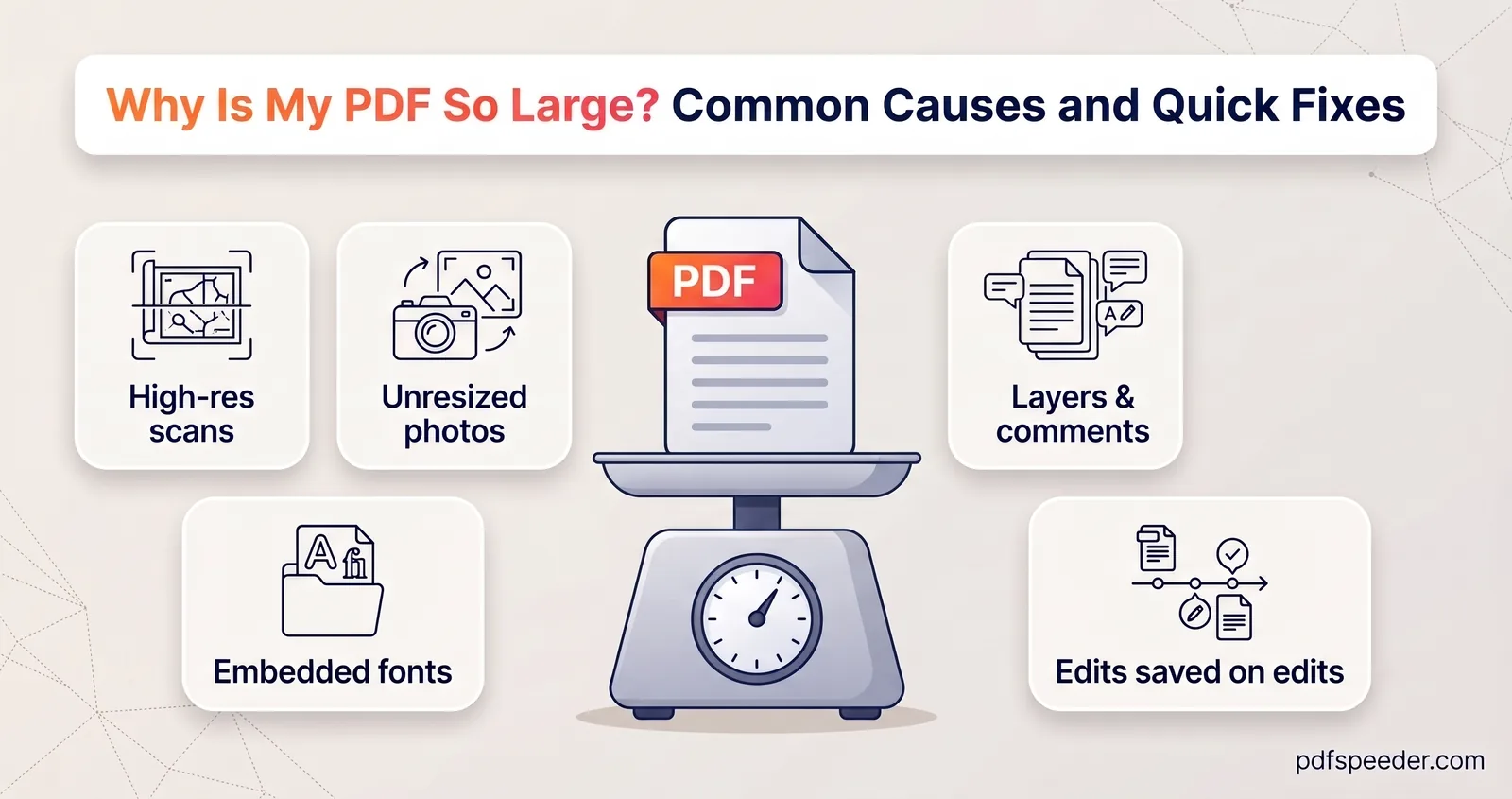
If you're wondering why your PDF is so large, the answer is almost always something inside it: scanned pages saved at high resolution, photos placed at full camera size, heavy embedded fonts, an attachment, or old edits still stored in the file. You can usually tell which in a couple of minutes by working out how much each page weighs. Below are measured figures for that check, then each cause with its tell-tale signs and the fix that works.
On this page
How big should your PDF be? A KB-per-page check
To see whether the PDF file size is too big for what's in it, divide the size in kilobytes by the number of pages. A 9 MB file with 12 pages works out at 768 KB per page (9 × 1,024 ÷ 12). Then compare your figure with these sample files, made and measured for this guide:
| What's on the pages | Pages | File size | Per page |
|---|---|---|---|
| Typed text exported from Word | 41 | 330 KB | 8 KB |
| Typed text exported from Word | 5 | 204 KB | 41 KB |
| The same report with three photos | 8 | 609 KB | 76 KB |
| Scan-style pages, black and white, 300 DPI | 3 | 162 KB | 54 KB |
| Scan-style pages, grayscale, 150 DPI | 3 | 1,320 KB | 440 KB |
| Scan-style pages, colour, 300 DPI | 3 | 3,639 KB | 1,213 KB |
| Phone photos placed one per page, not resized | 3 | 13,858 KB | 4,619 KB |
The scan-style samples are typed pages saved as images with paper tone and grain; your files will differ, but the order of magnitude holds. Fonts are a one-off cost, so short text documents weigh more per page than long ones, while anything stored as an image costs hundreds or thousands of kilobytes per page. A 10-page typed letter of 8 MB (about 820 KB a page) is carrying something it shouldn't; a seven-page colour scan of 8 MB is normal at 300 DPI.
Also try to select a sentence: if nothing highlights, the pages are images, so start with the first two causes below.
Scanned pages saved at high resolution
A scanner records each page as a photograph. One A4 page in colour at 300 DPI is 2,480 × 3,508 pixels, with three bytes of colour per pixel:
2,480 × 3,508 pixels × 3 bytes = 26,099,520 bytes (about 26.1 MB) per pageJPEG compression brought each sample page to about 1.2 MB, so a 20-page scan still weighs around 24 MB. If your scanner or phone app was set to 300 DPI or more in colour, a scanned PDF that's too large to upload is doing what it was told.
The fix: Compress PDF on Balanced brings scan images down to 100 DPI, which keeps typed text readable on screen. It took the three-page colour sample from 3,639 KB to 342 KB, a 90.6% saving. If you still have the paper, rescanning at 150 to 200 DPI, or in black and white for plain typed pages, saves even more; our guide to compressing a scanned PDF has the settings.
Photos and screenshots that were never resized
A phone photo has far more pixels than a page needs. To fill the width of an A4 page at 150 DPI, a photo needs 1,240 pixels across:
pixels needed = page width in inches × DPI
A4 width: 210 mm ÷ 25.4 = 8.27 inches, and 8.27 × 150 = 1,240 pixels
The three sample photos were 3,000 to 4,032 pixels wide. Placed one per A4 page exactly as taken, they made a 13.5 MB PDF. Resized to 1,240 pixels wide first, they came to 795 KB, 94% smaller.
It depends on the app that built the PDF. Word shrank the same photos by itself, to 1,180 pixels across for a picture 15 cm wide (about 200 pixels per inch). Converters and phone apps that keep the original quality shrink nothing, including our own JPG to PDF on its Original setting.
Screenshots are usually PNG files, which store every pixel without loss, so a screenshot of a photo is heavy: a 1920 × 1080 example took 2.5 MB as PNG and 286 KB as a JPEG at 85% quality.
The fix: compress on Low Compression, which brings photos down to 200 DPI, still fine for printing: the 13.5 MB sample came out at 1.2 MB. Balanced gave 198 KB, plenty for reading on screen. Or resize the photos before you build the PDF.
Embedded fonts and duplicated resources
A PDF carries its fonts so it looks the same on every device, usually as a subset holding only the characters the document uses. Even so, fonts can be most of a small file: in the five-page Word report, the two Calibri subsets took 176 KB of its 204 KB, or 87%.
It gets much worse when an app embeds a font whole. The regular Nirmala UI font, which covers Devanagari and other Indian scripts, is about 1.5 MB on its own. A one-page Hindi letter with that font embedded whole weighed 771 KB; with only the letters it used, 39 KB.
How to recognise it: a text-only PDF far heavier than the text rows in the table above. In Adobe Acrobat Reader, File > Properties > Fonts lists every font: "Embedded Subset" is normal, while "Embedded" on its own means the whole font is inside.
The fix: Compress PDF rebuilds fonts as compact subsets at every level, including Low, which changes photos the least. It took the Word report from 204 KB to 76 KB and the Hindi letter from 771 KB to 15 KB, with the text still selectable and searchable.
Duplicates are the other hidden cost. Merge PDFs that were made separately and each brings its own copy of the same fonts: the report's five pages, saved as separate files and merged again, weighed 832 KB instead of 204 KB. Some generators also store the same logo or background once per page: a 20-page sample with its own copy of a 436 KB picture on every page came to 8.5 MB. Compress PDF keeps one copy of identical images and trims repeated font data: the merged file dropped to 186 KB, and the 20-page file to 448 KB.
Layers, form fields and comments
Interactive extras are lighter than they look. Adding 40 filled-in form fields and 50 comments (highlights and notes) to the 204 KB report added 50 KB. Flatten PDF, which runs in your browser on files up to 50 MB, bakes them into the page (227 KB afterwards): use it to lock answers in place, not to save space.
Two extras can be heavy, though:
- Attachments. A file attached to a PDF, in its attachments panel or as a paperclip comment, is stored whole: a 5.8 MB photo turned the 204 KB report into a 5.9 MB file, and flattening, compression and a lossless rebuild all kept it. Export the PDF again without the attachment, or print the pages to a new PDF, which leaves attachments behind but can lose clickable links.
- Hidden layers. A layer you've switched off still takes space: a 12-megapixel phone photo on a hidden layer turned a page of three text lines into a 1.9 MB file, though nothing on the page changed. Compress PDF shrinks a hidden photo along with everything else: on Balanced the file came down to 19 KB with the photo still hidden. On Low Compression (93 KB), the photo appeared on the page in one of our two test files; the other, layered a different way, kept it hidden. Flatten PDF's Layers option keeps a hidden photo off the page but doesn't remove it from the file, which was still 1.9 MB afterwards. Re-export without unused layers, or check every page after compressing on Low Compression.
Edits saved on top of edits
Many PDF editors save changes by appending them to the end of the file, a method the PDF standard calls an incremental update. It's quick, but the old version of everything you changed stays inside: replace a photo three times and all four copies are still in the file.
In a test, a photo in the eight-page sample report (609 KB) was swapped and the file saved in place three times. It grew to 841 KB, then 1,078 KB, then 1,302 KB. A lossless rebuild, which writes out only what the document still uses, brought it to 721 KB, 44.6% smaller, without changing a pixel. (The final photo was bigger than the first, hence the gap.)
How to recognise it: a PDF bigger after editing than before, which grows with every save, even after you delete things.
Tip: For a technical check, open the PDF in Notepad or another plain-text editor and search for %%EOF. A file written in one go usually has one or two; each extra one is usually another round of saved edits.
The fix: Repair PDF with Optimize & compress ticked (the default) does this lossless rebuild in your browser on files up to 50 MB, so nothing is uploaded. Our guide to compressing a PDF without losing quality explains how lossless and lossy compression differ.
Warning: Rebuilding or compressing a digitally signed PDF, such as a signed certificate, breaks the signature, because it covers the exact bytes of the file. Keep the signed original for anything that will be verified.
Why is my PDF so large? Match each cause to the fix
| Cause | How to recognise it | What fixes it |
|---|---|---|
| High-resolution scans | No selectable text; hundreds of KB per page | Compress PDF on Balanced, or rescan at 150 to 200 DPI |
| Full-size photos, PNG screenshots | Photo pages of several MB each | Compress PDF on Low or Balanced |
| Whole or heavy embedded fonts | Text only, but far above the text rows | Compress PDF, any level |
| Duplicated fonts or images | Merged files; the same logo on every page | Compress PDF |
| Edits saved on top of edits | Grows every time you save | Repair PDF with Optimize & compress |
| Attachments | Files listed in the attachments panel | Export again without them |
| Hidden layers | A layers panel in your PDF reader | Re-export without the unused layers |
You can rule out metadata: the title, author, dates and hidden XMP data in the Word sample took about 3 KB. PDF Metadata Editor scrubs them in your browser, which is worth doing for privacy before you share a file, but it won't fix a big one.
Note: Compress PDF uploads your file over an encrypted connection (up to 100 MB) and deletes it within 2 hours; the other three tools run in your browser. Each tool counts one task per file in the free daily allowance (2 a day without an account, 3 with a free account, reset at 00:00 UTC), so diagnose first and run the one fix that matches.
Start with the two-minute check: divide the size by the pages, try selecting a sentence, and pick the matching fix from the table. If the file still needs to shrink, our seven ways to reduce PDF file size cover splitting, grayscale and smaller exports.
Frequently asked questions
Why is my PDF so large when it only has a few pages?
Almost always because the pages are images, such as scans or full-size photos, which can weigh megabytes each. Divide the size by the page count and compare it with the table above.
Why does my PDF get bigger after editing?
Many editors save changes by appending them, so old versions of edited images and pages stay in the file. A lossless rebuild, such as Repair PDF's Optimize & compress, clears them out.
Why is my scanned PDF too large?
Each page is a photograph: at 300 DPI in colour, an A4 page holds 26.1 million bytes of raw image data. Compress it on Balanced, or rescan at 150 to 200 DPI.
Do embedded fonts increase PDF size?
Yes, especially in short documents: one fully embedded Devanagari font made a one-page Hindi letter 771 KB. Compress PDF rebuilds fonts as small subsets.
Does removing metadata make a PDF smaller?
Barely: the metadata in the sample file was about 3 KB. Remove it for privacy, and look at images, fonts and attachments for size.