PDF vs DOCX: Which Format Should You Use and When?
PDF vs DOCX explained: which to use for resumes, contracts, invoices, printing and teamwork, how the formats differ, and how to convert between them cleanly.

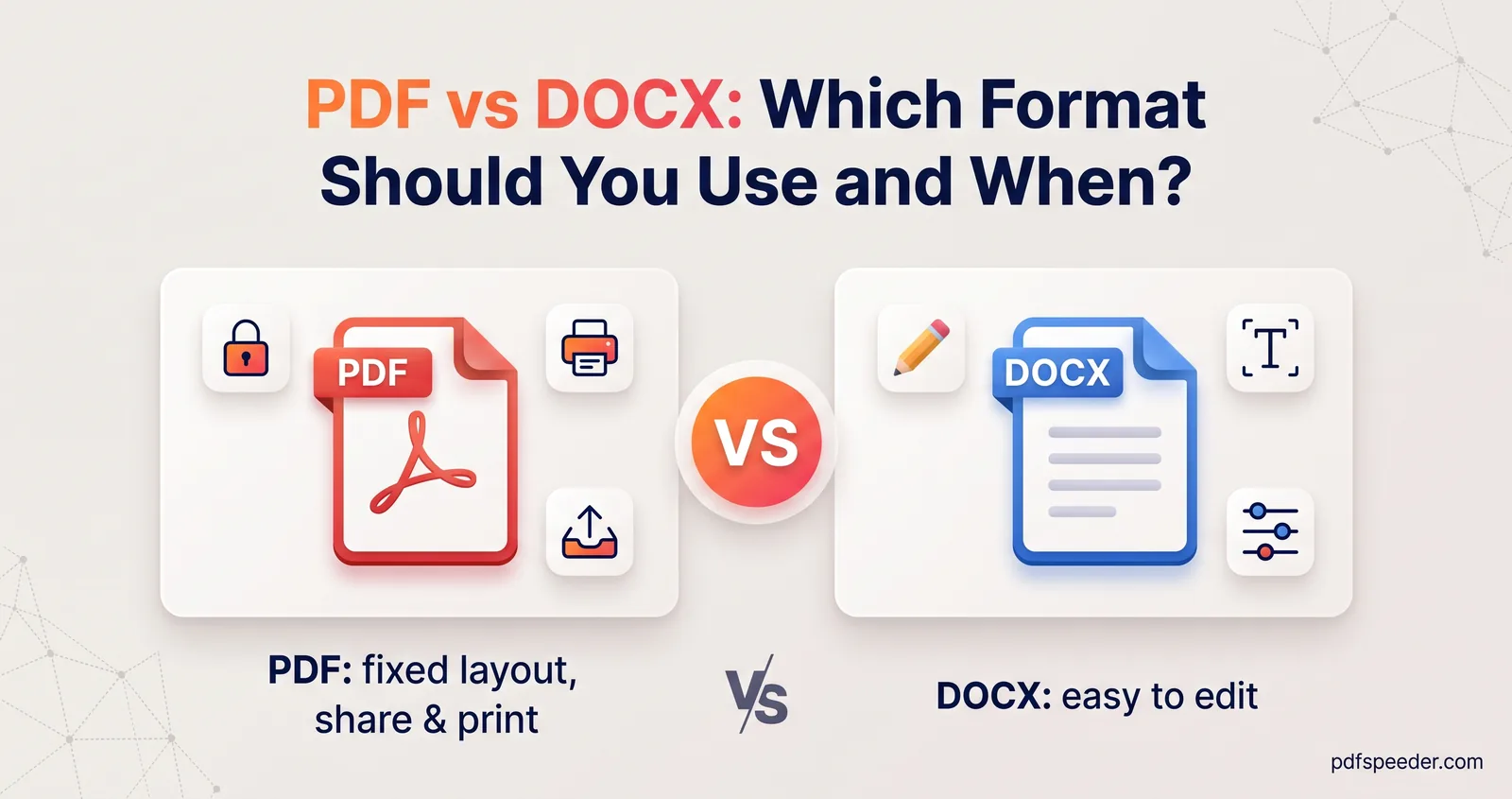
In the PDF vs DOCX choice, the rule of thumb is simple: use DOCX while a document is still being written or edited, and PDF once it's finished and must look exactly the same for everyone who opens it. DOCX is Word's editable format, whose text reflows to fit the page and the fonts available; PDF fixes every line and every page in place. A few cases, resumes above all, depend on who's asking, so they get their own section below.
On this page
The short answer
| You're... | Use |
|---|---|
| Writing or editing, alone or with others | DOCX |
| Sending a final version: a contract, invoice, report or certificate | |
| Printing at home or at a print shop | |
| Applying for a job | Whatever the posting asks for |
| Returning a form someone sent you | The format they sent, unless told otherwise |
| Keeping a record for many years | PDF, or PDF/A if it's required |
Most documents pass through both formats in their life: drafted and revised as DOCX, then sent and stored as PDF. Keep the DOCX as your master copy, even after you've sent the PDF.
PDF vs DOCX: key differences at a glance
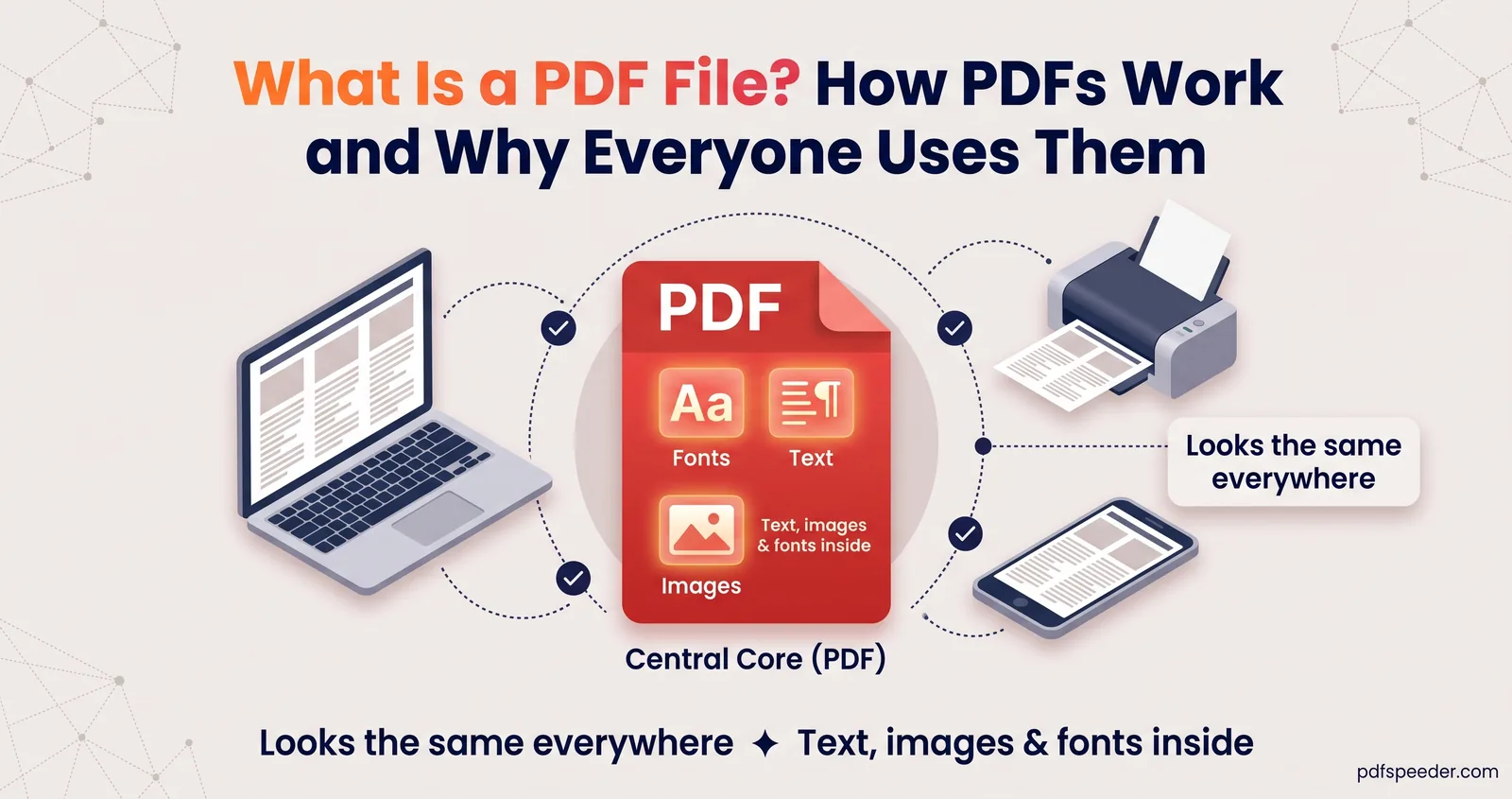
The difference between PDF and Word comes down to one design decision. A DOCX file stores text, styles and settings, and whichever app opens it lays the pages out on the spot. A PDF stores finished pages: every character, line and image sits at a fixed position.
| DOCX | ||
|---|---|---|
| What it is | Fixed-layout document format, international standard ISO 32000 | Word's default format since Word 2007, standardised as ISO/IEC 29500 |
| Layout | Identical on every device | Can shift with the app, the fonts installed and the settings |
| Fonts | Usually embedded in the file | Usually taken from the device, unless you embed them |
| Editing | Possible with a PDF editor; best for small changes | What it's built for |
| Opens in | Any browser, phone or computer | Word, Google Docs, LibreOffice and Pages, with possible layout differences |
| Working together | Comments and annotations | Track changes, comments and co-authoring |
| Protection | Open passwords, permission restrictions, digital signatures | Password to open, restricted editing |
| Reading on a phone | Zoom and scroll around a fixed page | Text can reflow to the screen |
The Library of Congress's format description for DOCX covers the Word format's history and versions in more detail.
When PDF is the better choice
- Final documents. Contracts, invoices, quotations, statements, certificates and reports should arrive exactly as you approved them. A PDF doesn't reflow, so page 3 stays page 3, and a recipient can't change a figure by accidentally typing into it.
- Printing. On DOCX vs PDF for printing, PDF wins clearly: it carries its fonts and fixed pages, so the print shop prints what you saw. A Word file opened on the shop's computer can wrap differently if it lacks your fonts, and one moved line can push a heading onto the next page.
- Sending to anyone. Everyone can open a PDF in a browser or on a phone without owning Word, and it looks the same for all of them.
- Signing and protecting. PDFs support digital signatures, fillable forms and passwords. Our guide to what PDF/A is covers the stricter archival version that some courts and archives ask for.
A PDF isn't tamper-proof, though. PDF editors can change it, so a password or a digital signature is what actually protects a final version.
When DOCX is the better choice
- Anything still changing. Drafts, proposals under discussion and contracts being negotiated belong in DOCX, where track changes and comments show who changed what.
- Documents others must edit. If a client, an editor or a colleague will rework the text, send DOCX. Asking them to convert your PDF back to Word costs them time and formatting.
- Templates and reusable documents. Letterheads, mail merges and forms you fill in every month are far easier to maintain as Word files.
- Reading on small screens. Word documents reflow to fit a phone screen, while a PDF page has to be zoomed and scrolled around.
A well-structured Word document, with real headings, alt text on images and simple tables, is also easier to adapt for different readers. Those same structures carry through into an accessible PDF when you export with tags turned on.
Resumes: PDF or Word?
Follow the posting's instructions first. If an application portal or a job ad names a format, a file size or a file name, use exactly that; when a resume in PDF or Word is a free choice, these points help you decide:
- PDF keeps your layout. Fonts, spacing and page breaks look the same for every recruiter, whatever device they use.
- Word lets others edit. Recruitment agencies sometimes reformat CVs before passing them on, which is easier with a DOCX. If an agency asks for Word, send Word.
- Real text matters in either format. Open your PDF and try to select a line. If you can't, it was saved as an image, and anyone searching it, person or software, will find nothing. Export from Word rather than scanning or screenshotting your CV.
- Simple layouts travel best. Single-column layouts with standard headings convert between formats with the fewest surprises.
Name the file clearly, such as Priya-Sharma-Resume.pdf, and open the exported copy once before you send it.
Switching between the two formats
Convert DOCX to PDF
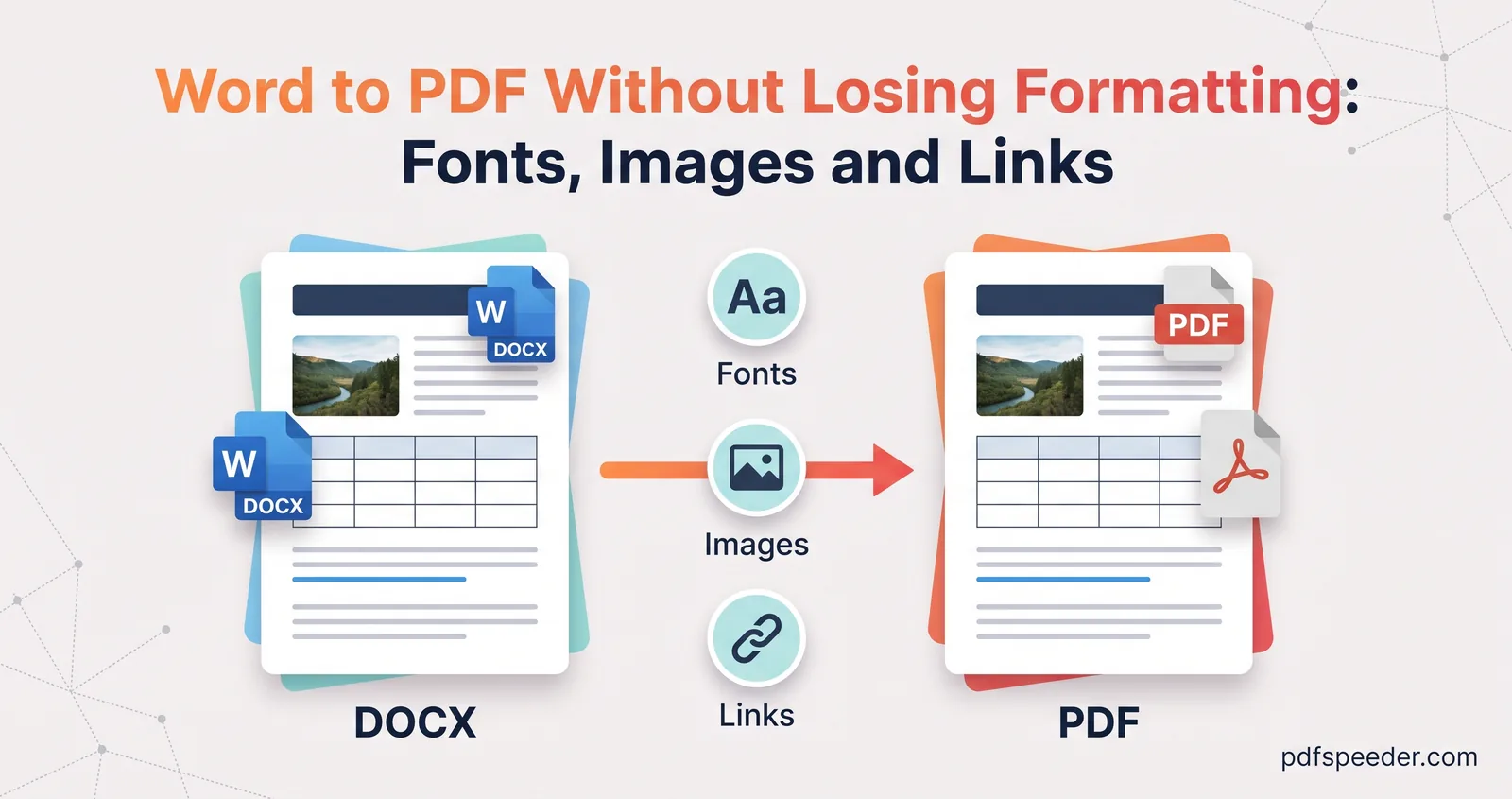
The most faithful way to convert DOCX to PDF is from Word itself, on the computer where the document already looks right: File > Save a Copy (or Save As), then choose PDF. In Google Docs, use File > Download > PDF Document.
No Word on the device you're using? Our Word to PDF converter accepts DOCX, DOC, RTF, ODT and DOTX files up to 50 MB, several at a time. It converts on our server with the fonts installed there, keeping fonts, tables and layout as close to the original as possible, so check the preview before you download.
Files are uploaded over an encrypted connection and deleted automatically within 2 hours, and each document counts as one task in the free daily allowance: 2 tasks a day without an account, 3 with a free account, reset at 00:00 UTC. Our guide to converting Word to PDF without losing formatting fixes swapped fonts and blurry images.
Convert PDF to DOCX
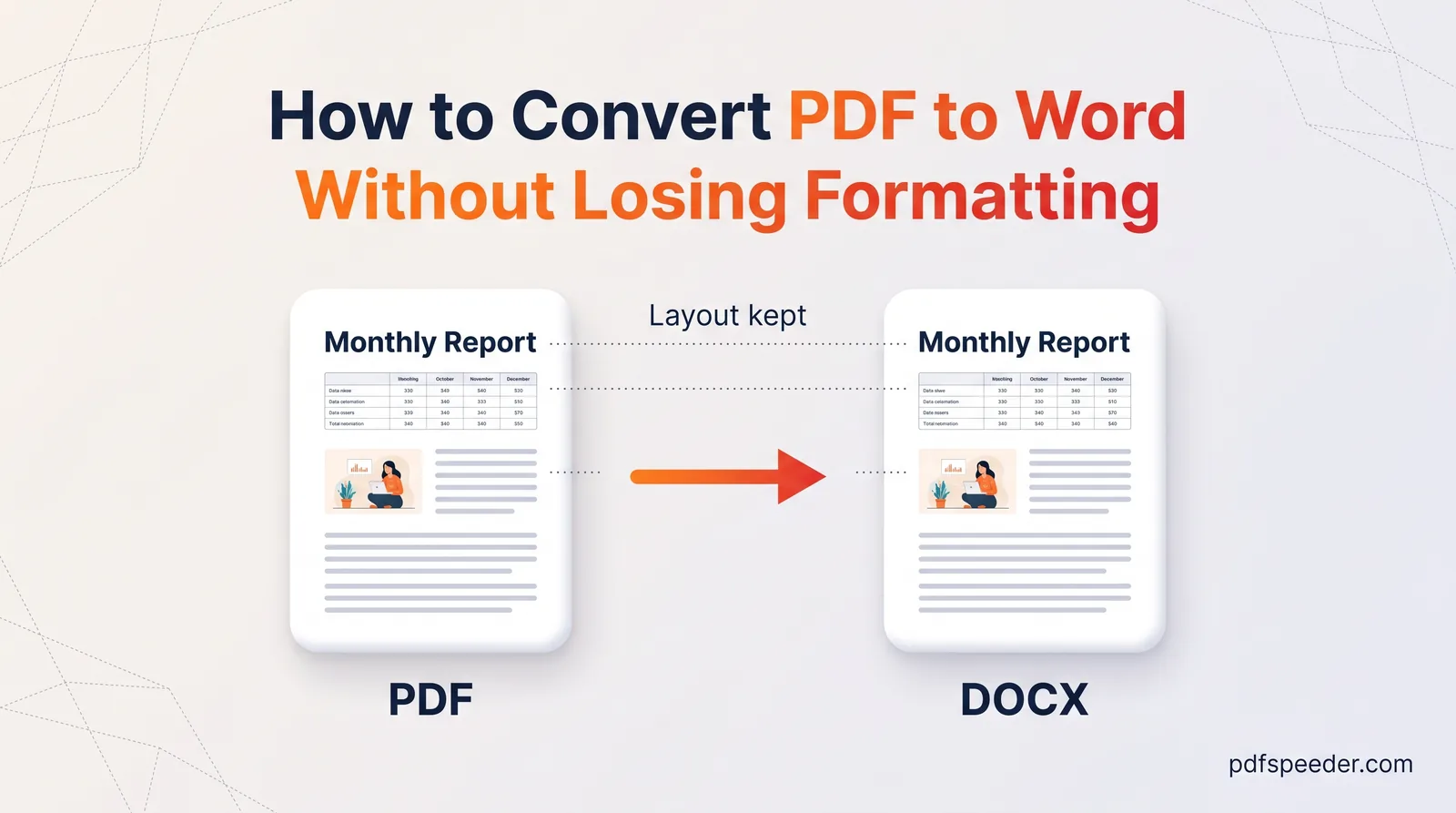
Converting back is a reconstruction rather than a reversal, because the PDF holds positioned lines, not paragraphs and styles. Desktop Word can do it: open the PDF with File > Open and Word makes an editable copy, leaving the original PDF untouched. Microsoft's guide to opening PDFs in Word says it works best on mostly-text documents and lists the elements that convert poorly, such as tables with cell spacing, footnotes and page borders.
Our PDF to Word converter is the alternative when the layout matters or the PDF is a scan. Upload a PDF of up to 50 MB, click the page thumbnails to choose which pages to convert, and leave Text Recognition (OCR) on Auto, so scanned pages are read as text in the language you pick. It also runs on our server, deletes files within 2 hours and counts as one task. Expect to tidy a few line breaks either way; our guide to converting PDF to Word without losing formatting shows where conversions usually slip.
The best fix is avoiding the round trip altogether: if you made the PDF from your own Word file, edit that DOCX and export a fresh PDF.
Next step: decide which stage your document is at. If it's finished, export it to PDF from the app you wrote it in; if someone needs to edit it, send the DOCX.
Frequently asked questions
Is PDF better than Word?
Neither is better overall. DOCX is better for writing and editing, and PDF is better for sending, printing and keeping final versions, which is why most documents use both.
Should I send my resume in PDF or Word?
Send whichever format the posting asks for. If both are allowed, a PDF keeps your layout intact, as long as its text can be selected rather than being an image.
Can a PDF be edited like a Word document?
Small changes, yes, with a PDF editor. For larger rewrites, edit the original DOCX or convert the PDF to Word, then export a new PDF.
Which is smaller, a PDF or a DOCX file?
Neither is consistently smaller. Images make up most of the size in both formats, and PDFs also carry embedded fonts, so compare the actual files when size matters.
Does converting DOCX to PDF change the formatting?
Not when you export from Word on the computer where the document looks right. Other apps and converters may substitute fonts, which can move line and page breaks, so always check the result.